Workday Learning SCORM not tracking? Check these fixes
If a SCORM lesson does not show completion in Workday Learning, test the package, tenant settings, and learner launch before you change the course. The same checks apply to a course built with Honen for Workday Learning.
Check the package and version
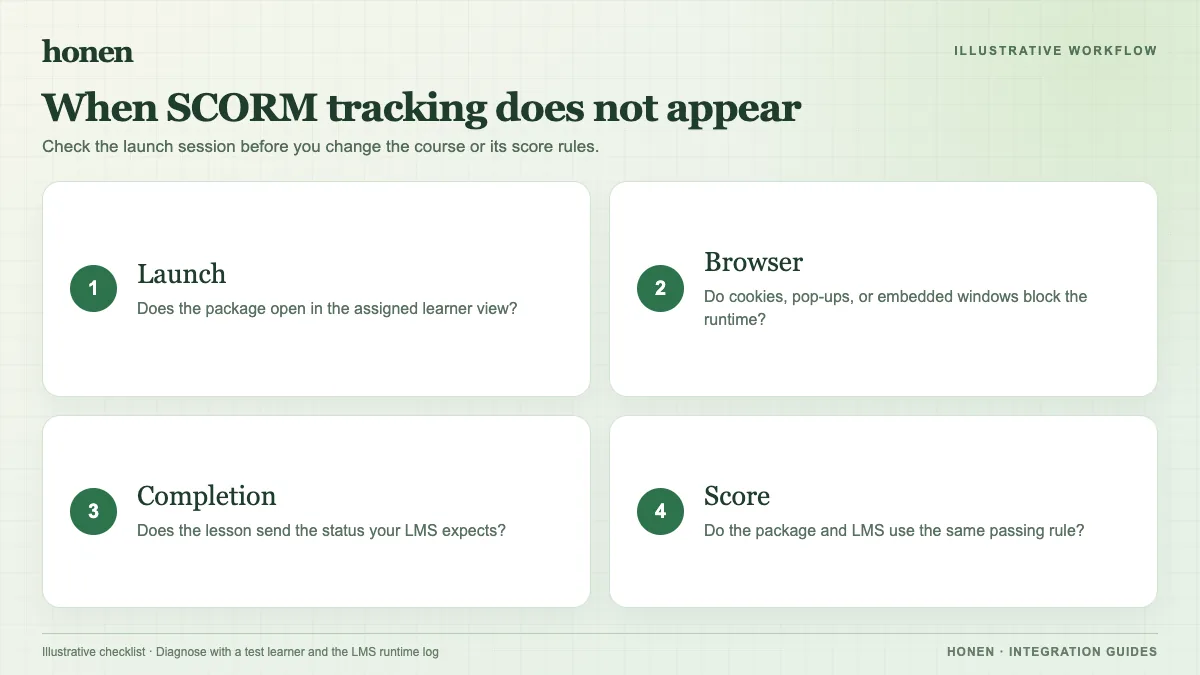
Workday supports SCORM 1.2 and SCORM 2004, 2nd through 4th Editions. Confirm that the ZIP contains a valid manifest at the package root and that its version matches the one you expect. Workday recommends a SCORM Cloud test during content creation and troubleshooting. If the independent test fails, fix the package first.
Check completion settings
The author defines when the package reports completion. Workday's course and lesson settings determine how that result becomes a learning record. Confirm that the learner met the package rule. If the lesson reports complete only at exit, let the learner exit normally. Workday also documents Enable Completion Without Exit for SCORM 1.X and Enable Completion Without Exit for SCORM 2004 in tenant setup; ask an administrator to review the relevant setting.
Check the browser session
Workday warns that pop-up blockers can affect packaged-content interactions. Allow the course window, then retest. Browser cookie or storage restrictions may also affect the launched experience, so repeat the test in a supported browser under your organization's policy. If an embedded launch fails, test the available new-window path with your administrator. Do not assume one browser workaround repairs a broken package.
SCORM sends results through the active browser session. It does not send server-to-server grades after the course closes. Workday's FAQ describes package-session timeouts, which can stop further updates. Finish a short test course before the session limit to separate a timeout from a completion-rule issue.
Check score and interactions separately
A course can complete without a score. Workday records summary score and pass/fail only when the package sends assessment data. Question-level responses also need the Enable Packaged Content Interaction Reporting tenant option and a package that publishes interaction results. Check each value separately in the learning report.
Test a Honen package
Open a test assignment. Complete it, exit, and inspect status and score. Reopen it to check resume. If you revise Honen content, relaunch to load the current version and repeat the test. Keep instructions short and active. Have a qualified editor check approved words, ASD-STE100 rules, and domain terms when controlled language matters; Honen does not certify conformance.
Next step
Return to Honen with Workday Learning or follow the SCORM upload guide. Review SCORM, cmi5, xAPI, and LTI explained before changing the package format.
Related guides
Build with Honen
Create a course from your source material. Review the content. Deliver it through your LMS.
Book a demo