Turn PDFs, slides, and video into Workday Learning courses
Honen can use approved PDFs, slides, and video as source material for a course that you deliver in Workday Learning. Review the draft, export a SCORM ZIP, and add it to a Workday course media lesson. The Workday Learning integration page shows the route.
Start with a PDF policy
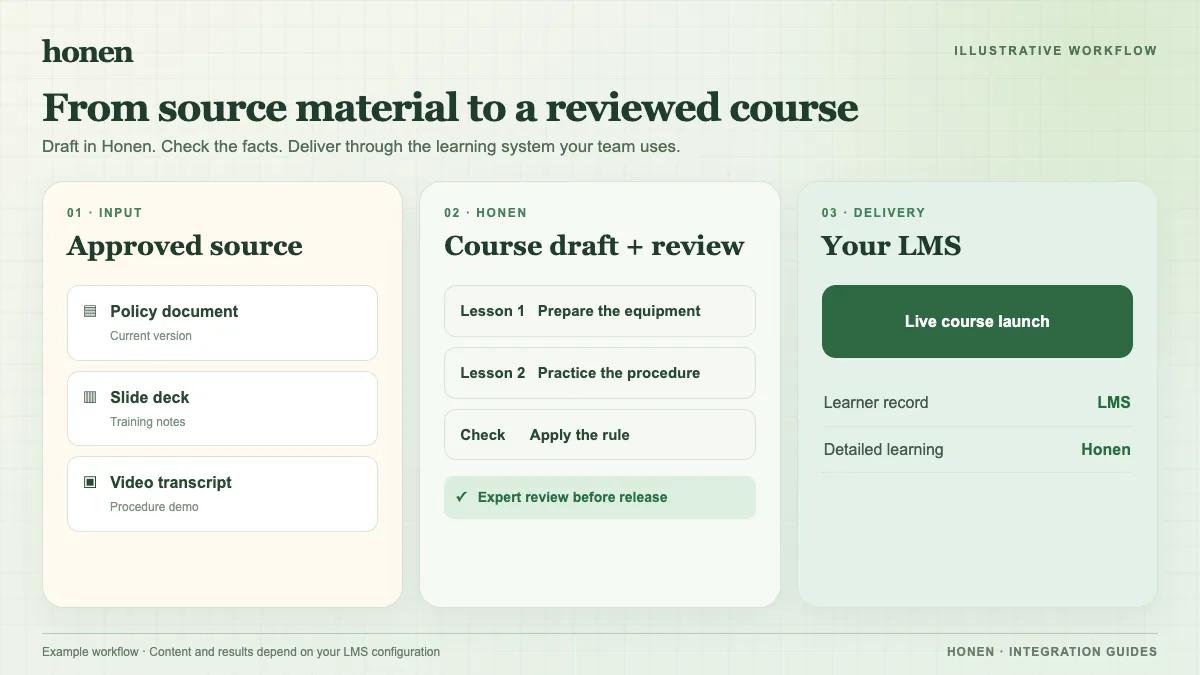
A PDF may define a leave process but give no practice. Give Honen the current policy. Ask for a short lesson that states who can request leave, which form to use, and where to send it. Add a check that asks the learner to choose the correct next action. Verify every answer against the effective policy.
Start with slides
A slide deck may contain fragments such as “Escalation: manager, then HR.” Turn that into a complete instruction: “Tell your manager. If the issue remains, contact HR.” Keep one action per step. Check that the course retains any important diagram, warning, or exception that the slide did not explain in text.
Start with video
A recorded equipment demonstration can become a sequence of steps and checks. Review the transcript against the video. Do not let an unclear spoken phrase become a safety instruction. A subject expert must approve the final sequence.
Review before export
- Remove outdated and duplicate sources.
- Check all generated facts and examples.
- Use short, active sentences and consistent terms.
- Have a qualified editor review the approved dictionary, ASD-STE100 rules, and domain terms if controlled language is required.
- Test the SCORM launch and results in Workday.
Honen helps draft and review. Workday supports SCORM 1.2 and 2004 packaged content. Choose a tested version. While the course is open, SCORM can report completion, pass/fail, score, time, and resume data.
Next step
See Honen with Workday Learning and how to upload the package. To plan ongoing revisions, read what a live SCORM package does.
Related guides
Build with Honen
Create a course from your source material. Review the content. Deliver it through your LMS.
Book a demo