How to upload a SCORM package to Cornerstone OnDemand
Use Cornerstone Learning's Content Uploader to add a SCORM ZIP, then test the course with a learner account. Honen works with Cornerstone by exporting a live SCORM package. Cornerstone confirms support for SCORM content.
Prepare the ZIP
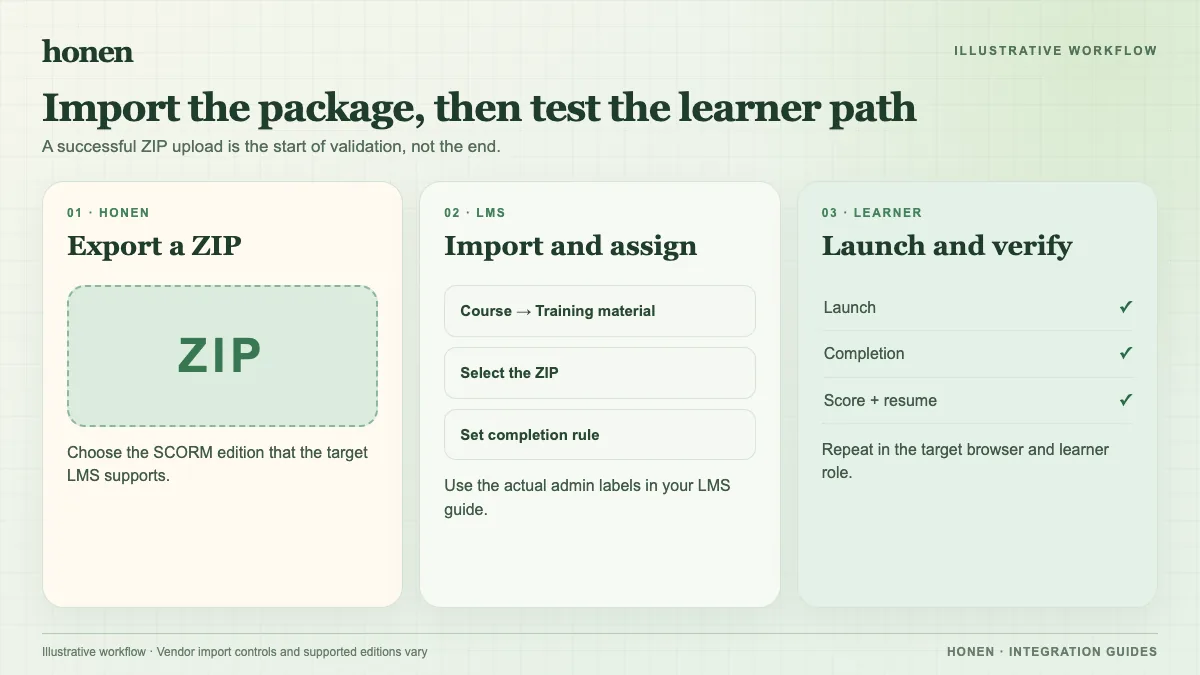
Publish and review the source course first. In Honen, export SCORM 1.2 unless your Cornerstone administrator has confirmed a need for, and tested, SCORM 2004 4th Edition. Keep the downloaded ZIP intact. Do not unzip it before upload.
The Cornerstone-authored upload guide says that a ZIP contains one standard. It also describes a 750 MB limit. Check your tenant's current policy because the guide dates from 2019. A 2024 Cornerstone tenant job aid gives a similar upload flow.
Upload and publish in Cornerstone
The documented classic path is Admin → Tools → Learning → Content Uploader. Your tenant may use a different menu or permission model.
- Open Content Uploader with an administrator account.
- Select the SCORM ZIP, or drag it into the upload area.
- Wait for the file to upload and process. Keep the page open until it finishes.
- Check the validation result. Resolve any package error before you publish.
- Select a provider for the uploaded course.
- Open the draft course in the Course Catalog or Course Console.
- Preview the course. Check exit, resume, and any required quiz.
- Add the title, description, and audience settings used by your tenant.
- Publish the course and confirm that it appears in the catalog.
The Cornerstone-authored guide covers upload and provider selection. The 2024 tenant guide covers preview, metadata, availability, and publication. Ask your administrator to confirm current labels and permissions; we do not have a verified screenshot of every tenant view.
Test before a broad rollout
Assign the course to a test learner. Launch it in the browser your learners use. Complete one activity and leave the course. Launch it again to check resume. Finish it and inspect Cornerstone's completion result. If you use a pass or fail policy, test both outcomes.
SCORM reports through the browser while the course is open. A closed tab cannot receive a later server-side grade. Keep this limit in mind when you set completion criteria.
Check the writing before upload
Use short, active instructions in the source course. Give one action per step and use the same name for the same item. Honen can help draft and review this controlled-language style. A qualified editor must check the ASD-STE100 dictionary and rules; a SCORM upload does not prove language conformity.
Need a course to upload? Build one with Honen for Cornerstone. Then read what a live SCORM package is before you plan an update.
Related guides
Build with Honen
Create a course from your source material. Review the content. Deliver it through your LMS.
Book a demo