How to upload a SCORM package to Totara Learn
Turn course editing on, add a SCORM activity, and upload the ZIP. Totara documents the activity steps. For a package built in Honen, read Honen with Totara Learn first.
Check format and access
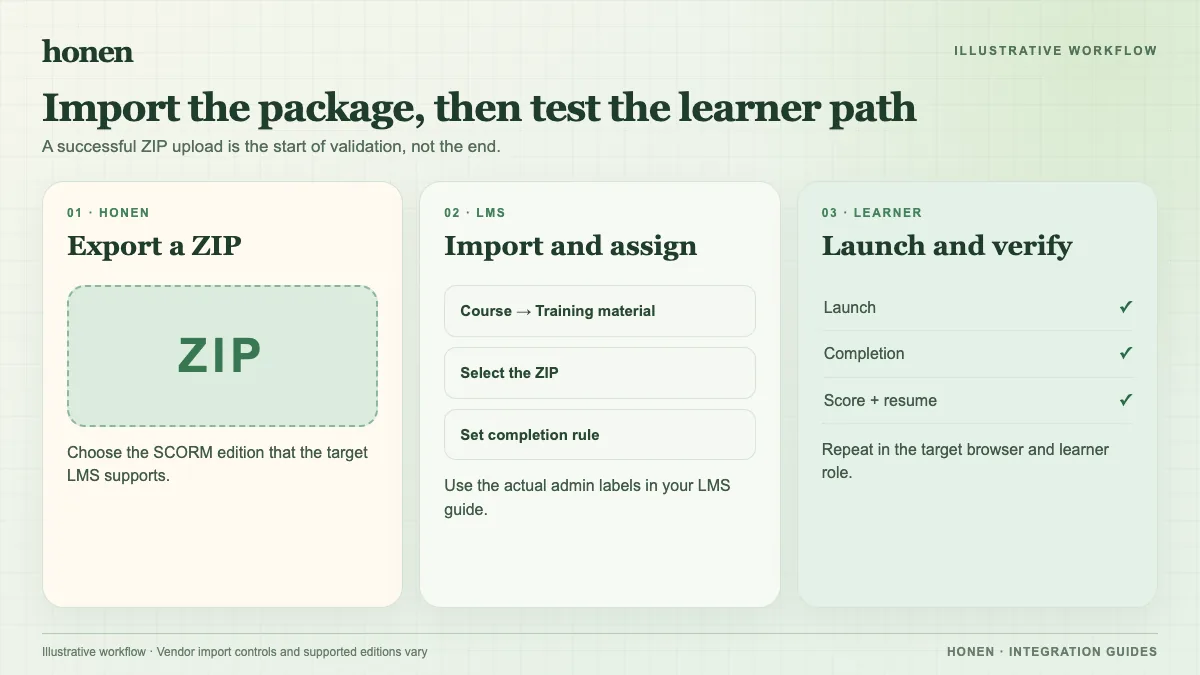
Use SCORM 1.2 for the fully supported path. Totara's SCORM 2004 support has documented exceptions. Keep the file compressed. A user who uploads a new unknown package needs the mod/scorm:addnewpackage capability; an error may be a permission issue rather than a bad ZIP.
Add the activity
- Open the Totara course and select Turn editing on.
- Select SCORM from Add an activity.
- Drag the compressed ZIP into the upload area or browse for it.
- Set the SCORM grade, attempts, and display options.
- Set activity completion if required.
- Select Save and return to course or Save and display.
Totara also allows a zipped package to be dragged directly into an editing course with default settings. Review those settings after import. Totara's settings guide explains the grade methods and launch-window choices.
Verify learner tracking
Launch as a learner. Check completion, score, time, and resume after exit. If a Honen thin package is used, change approved content and relaunch to test its hosted update in your site. SCORM reports through the open browser session.
Use short, active course instructions. Honen helps draft and review controlled language; a qualified editor must check the approved dictionary, ASD-STE100 rules, and domain terms. Honen does not certify compliance.
Next step
Return to Honen with Totara Learn and read what a live SCORM package does.
Related guides
Build with Honen
Create a course from your source material. Review the content. Deliver it through your LMS.
Book a demo