How to upload a SCORM package to TalentLMS
Prepare a single-SCO SCORM 1.2 ZIP. Then add it as a learning activity in a TalentLMS course. This guide follows TalentLMS's current help page. If you need to build a course first, see Honen for TalentLMS.
Before you upload
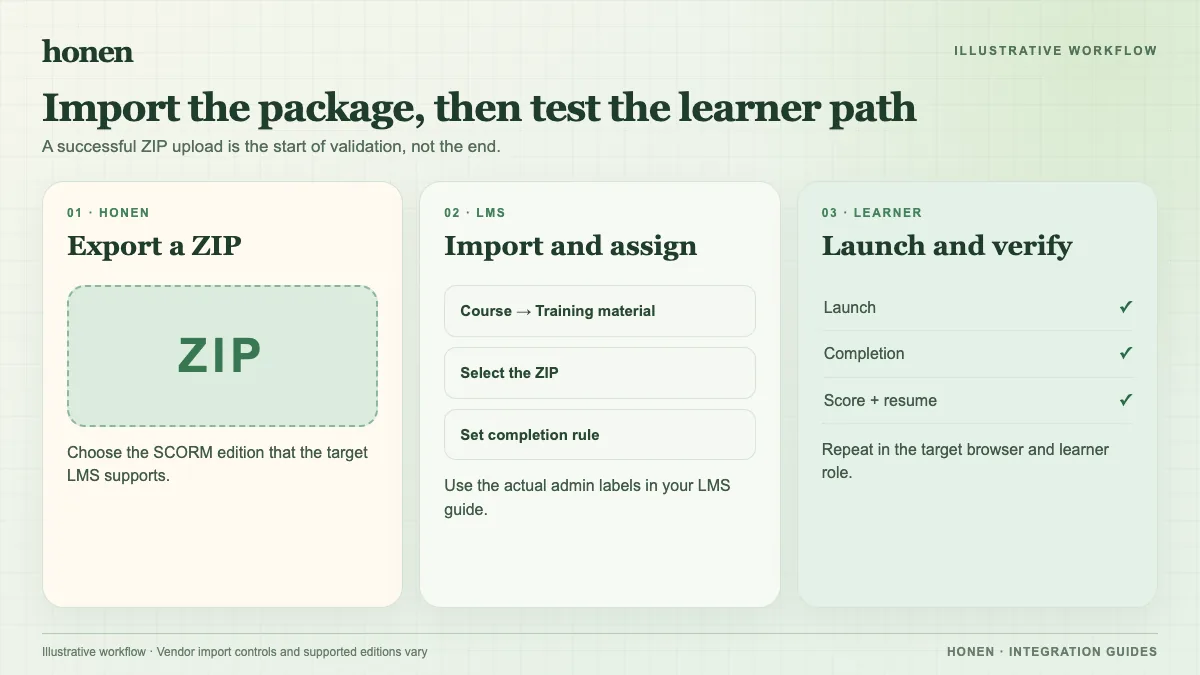
Confirm that your ZIP contains one SCO and uses SCORM 1.2. TalentLMS does not support SCORM 2004 or Multi-SCO packages. Set completion and score rules in the authoring tool. Keep a test learner account ready. Confirm that the learner can reach the external course host if you use a thin live package.
Add the ZIP to a course
- Sign in as an Administrator or Instructor.
- Open Courses and edit the course you want to update.
- Select Add → Learning Activities → SCORM | xAPI | cmi5.
- Select Upload a SCORM, xAPI, or cmi5 ZIP file.
- Choose your SCORM 1.2 ZIP.
- Open the unit options. Choose Embedded or Pop-up under Show as.
- Save the unit and publish it for your learners.
TalentLMS also supports dragging a ZIP into the course content area. Use the same test steps after either upload method.
Test the learner result
Open the unit as a learner. Complete the final action. Exit the unit normally. Check its completion status and score in TalentLMS Learning activities. If the result is missing, check that the package sent a final SCORM status and committed it while the course was open. Test the display mode and browser if launch behavior changes.
If you use Honen to draft the course, review facts and terms before export. Use short sentences and one action per step. Ask a qualified editor to check ASD-STE100 rules and approved terminology. That review remains necessary after an update.
Next step
Use the TalentLMS integration overview for content updates and tutor details. Read what a live SCORM package is to plan a revision process.
Related guides
Build with Honen
Create a course from your source material. Review the content. Deliver it through your LMS.
Book a demo