How to upload a SCORM package to SAP SuccessFactors Learning
Import the complete SCORM ZIP through SAP Learning's content import process, attach it to a learning item, and test a learner launch. You can build a live package first with Honen for SAP SuccessFactors Learning.
Prepare the package and tenant
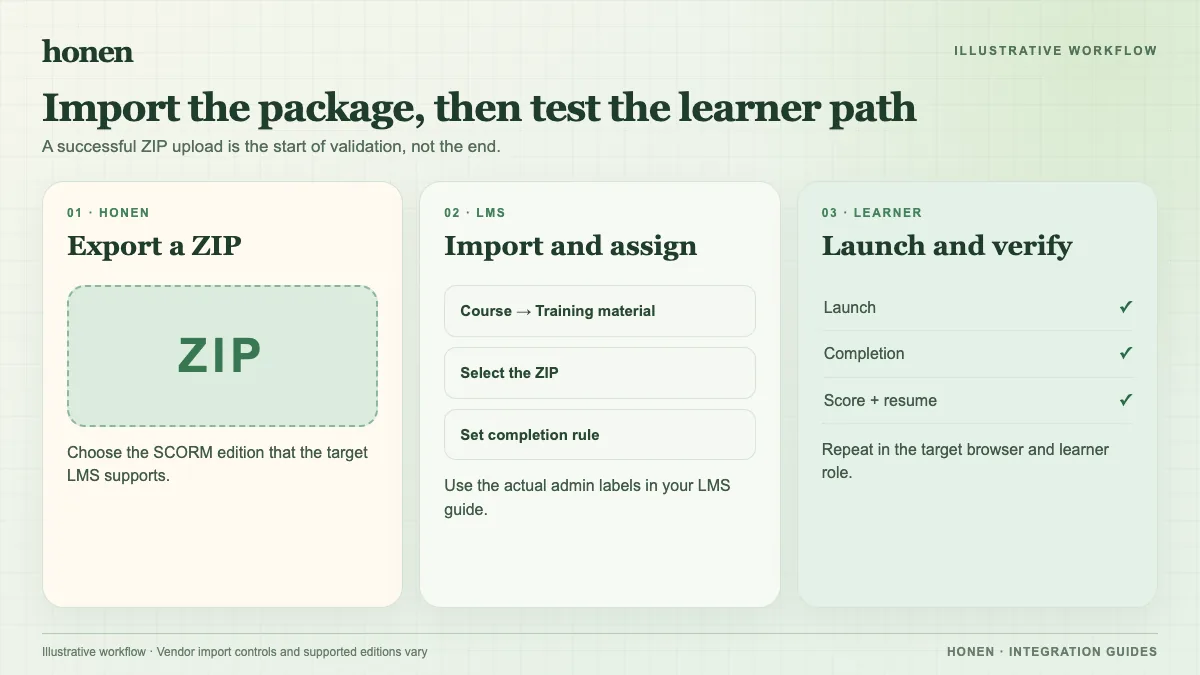
Use Honen to draft the course from approved source files. Write short, active steps with one action in each step. If ASD-STE100 applies, have a qualified editor check the draft against its dictionary and rules before export.
Choose SCORM 1.2 or a SAP-supported SCORM 2004 edition. Keep the ZIP intact; SAP specifically says to add SCORM 2004 as one package. See SAP's package guidance. Confirm that a content deployment location and an online learning item exist. SAP lists these as prerequisites when you add content to an existing item. See the prerequisites.
Import and attach the ZIP
- In SAP SuccessFactors Learning administration, go to Content → Import Content.
- Select Add content for an Existing item. Choose the ZIP.
- Select the deployment location and the learning item. Complete the import.
- Check the import summary. Review the content object IDs.
- Open the item and confirm the package is associated with its online content.
These steps follow SAP's existing-item import guide. If you imported the package as a separate record, SAP explains how to add it to a learning item. Tenant permissions and labels can vary by release.
Test before assignment
Use a test learner. Launch the course, complete an assessment, close it, and reopen it. Confirm the item records the expected status and score. Test resume, pop-up behavior, and the launch method your tenant uses. If tracking fails, use the SCORM tracking checklist.
Next step
Need a course to import? See Honen with SAP Learning and how live SCORM packages work.
Related guides
Build with Honen
Create a course from your source material. Review the content. Deliver it through your LMS.
Book a demo