How to upload a SCORM package to Moodle Workplace
Use a SCORM activity for a SCORM ZIP in Moodle Workplace. Moodle lists SCORM content integration for Workplace and documents the course-page upload flow for Moodle LMS features. Check your site's theme and permissions before you start. Need a course to upload? See Honen for Moodle Workplace.
Prepare the package
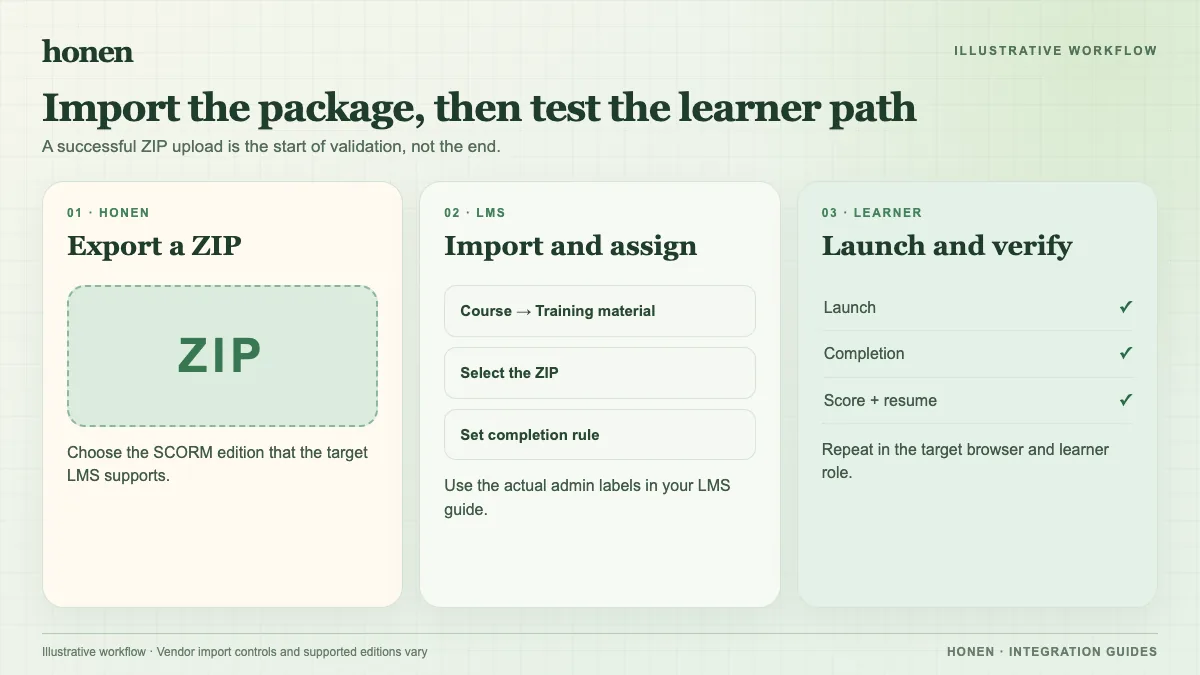
Export SCORM 1.2, the version listed on Moodle's standards page. Keep the ZIP intact. Set a clear completion action and score rule in the authoring course. Confirm that your site lets your role edit the target course.
Add the SCORM activity
- Open the target course and turn on edit mode.
- Drag the ZIP into the course section.
- Select Add a SCORM package when Moodle asks how to use the ZIP.
- Select the upload button.
- Check the activity name, display, grade, and completion settings.
- Save the activity.
These drag-and-drop steps follow Moodle's course homepage guide. You can also choose a SCORM activity from the activity chooser. A generic File resource will not give you the same SCORM tracking.
Test the result
Launch as a learner. Complete the final action and exit. Check the activity completion and grade that your package and site produce. SCORM data returns while the course is open. If completion is absent, inspect the package's final status and your activity rule.
If Honen drafted the lesson, ask a qualified editor to check ASD-STE100 rules and approved terms before upload. Use short sentences and one action per instruction.
Next step
Use the Moodle Workplace overview for update and LTI choices. Read what a live SCORM package is before you revise content.
Related guides
Build with Honen
Create a course from your source material. Review the content. Deliver it through your LMS.
Book a demo