How to add an AI tutor to your existing LMS
Keep your LMS for enrollment and records. Build the course in Honen and deliver the full course into the LMS. The Honen tutor runs with the course. The learner can ask for help while studying. Choose your LMS to see its supported path.
Start with the learner's task
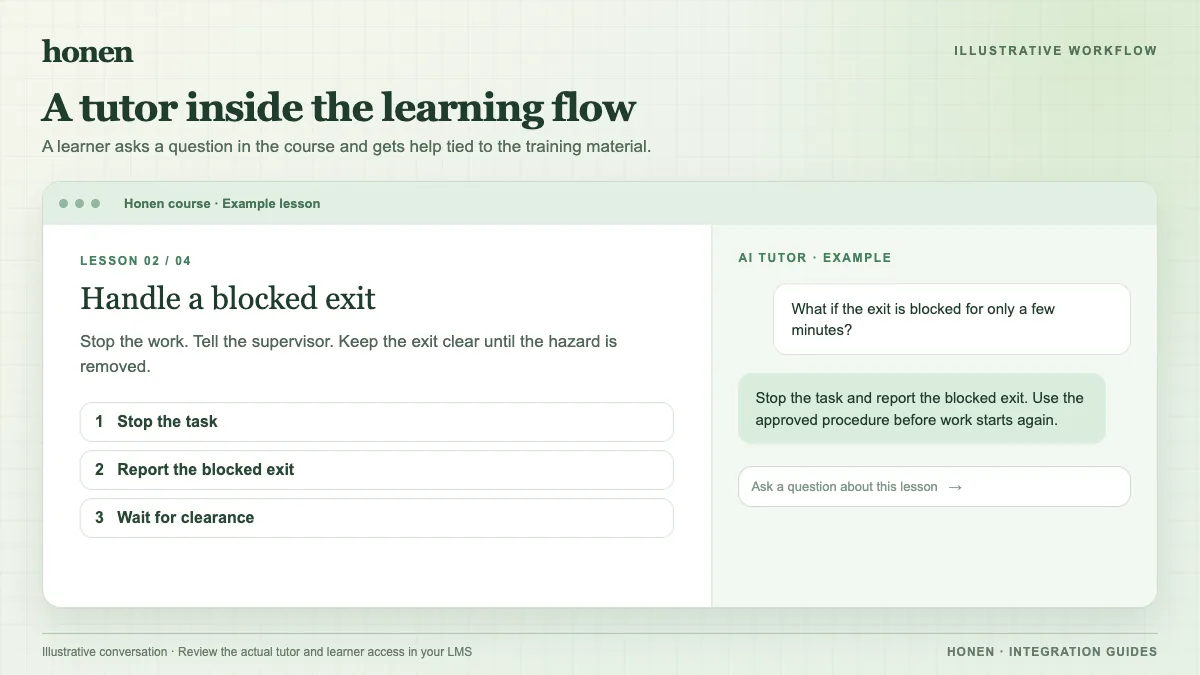
An AI tutor is useful when a learner needs an explanation, a practice question, or help with a difficult step. A static page can give the same text to every learner. A tutor can respond to a learner's question in the course context. Use approved source material and test the tutor's answers before launch. Check the learner view with a real test account.
Choose the LMS delivery path
Use SCORM when your LMS accepts a SCORM package. Import the Honen ZIP, attach it to the LMS course, and test the launch. The tutor stays inside the launched Honen course. SCORM can return completion, pass or fail, score, time, and resume data while the course is open. It does not send later server-to-server grades.
Use cmi5 only when your LMS tenant supports it. Import the cmi5 package and test the required statements in the LMS's LRS. The ADL cmi5 guide describes the launch and tracking model. Use LTI 1.3 when the LMS permits a tool launch. Check whether it also enables roster and grade services; LTI Core alone does not promise them. 1EdTech lists the services.
Build a course the tutor can use
Add current documents, policy text, examples, and checks to Honen. Ask Honen to draft the course. Review factual claims, assessment answers, and tutor behavior. Rewrite long steps as short commands. Use one term for one concept.
If your organization follows ASD-STE100, have a qualified editor compare the content with the approved dictionary and rules. An AI draft cannot certify compliance.
Run a launch test
- Open the LMS item as a test learner.
- Ask the tutor a question about the approved course material.
- Complete a lesson and a check.
- Close the course through the expected path.
- Confirm the record in the LMS and the learning detail in Honen.
If the tutor or record does not appear, check the LMS launch settings and browser restrictions before you assign the course to a cohort. The path comparison can help you pick another supported route.
Next step
Open the integration directory and select the LMS your learners already use.
Related guides
Build with Honen
Create a course from your source material. Review the content. Deliver it through your LMS.
Book a demo