How to upload a SCORM package to D2L Brightspace
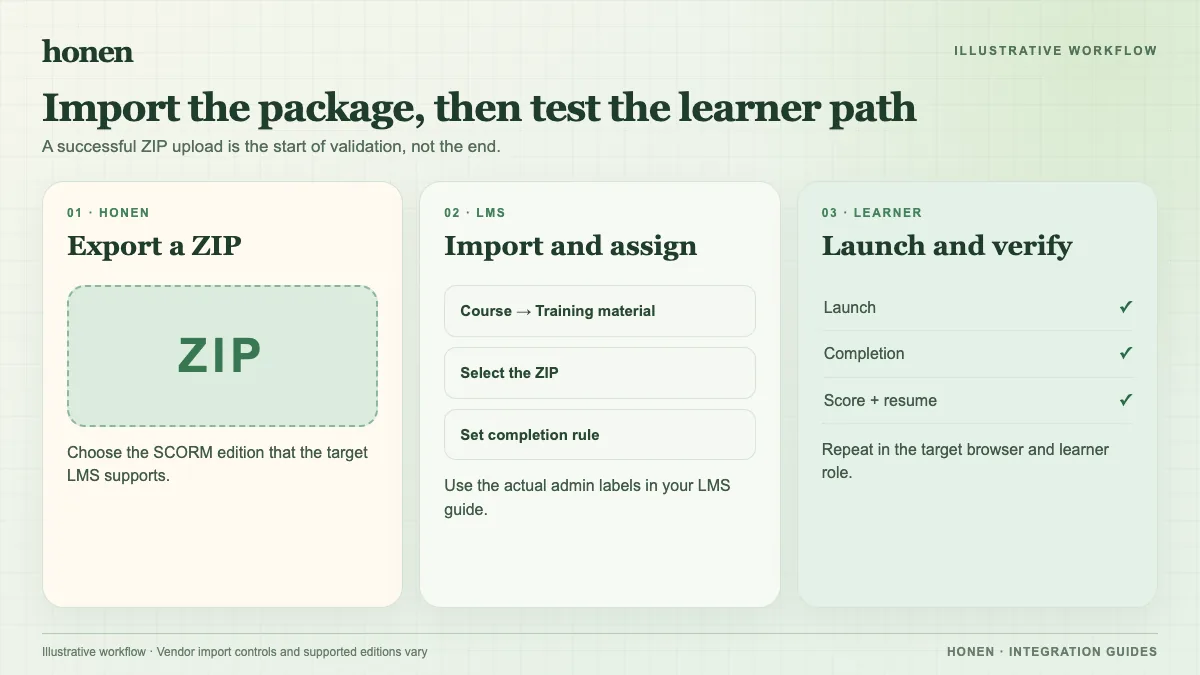
Add a SCORM ZIP to a Brightspace Content module, then test it as a learner. This guide uses the Honen with D2L Brightspace live package and D2L's new SCORM solution.
SCORM support alone does not verify Honen's hosted launcher in Brightspace. Test the exact ZIP, learner launch, and result in your site before rollout.
Confirm your SCORM solution
D2L says the new solution requires Content Service; sites without it use the legacy SCORM solution. Brightspace supports SCORM 1.2 and 2004. Ask the administrator which path is enabled. This procedure applies to the new solution in Classic Content.
Add the package
Follow D2L's documented Content workflow:
- Open Content and select or create a module.
- Select Upload/Create, then New SCORM Object/xAPI Object.
- Select Upload and choose the Honen ZIP.
- Save the uploaded package.
- Select the package and choose Add.
- Create a grade item if the course needs one, and choose its calculation method.
- Save the Content item.
The Content Experience and legacy solution have different controls. Use the D2L guide that matches your tenant instead of guessing from these labels.
Test and maintain it
Open the item as a learner. Check that the course and tutor load. Finish a sample activity. Confirm the expected completion, pass/fail, score, time, and resume values while the course is open. Inspect the Brightspace grade item if you created one.
Honen's live launcher loads current content after a Honen edit. Re-export when package settings change. A qualified editor must check the draft against the approved dictionary, ASD-STE100 rules, and domain terms.
Next step
Build a course with Honen for D2L Brightspace, and see what makes a SCORM package live.
Related guides
Build with Honen
Create a course from your source material. Review the content. Deliver it through your LMS.
Book a demo