How to upload a SCORM package to Canvas LMS
If your institution has enabled Canvas's SCORM LTI, open the SCORM course link, upload a ZIP, and choose whether to import it as an assignment or page. Honen works with Canvas through LTI 1.3 as its main path; the SCORM ZIP is an option for institutions that use Canvas's SCORM tool.
SCORM support alone does not verify Honen's hosted launcher in Canvas. Test the exact ZIP, learner launch, and result in your site before rollout.
Check the prerequisite
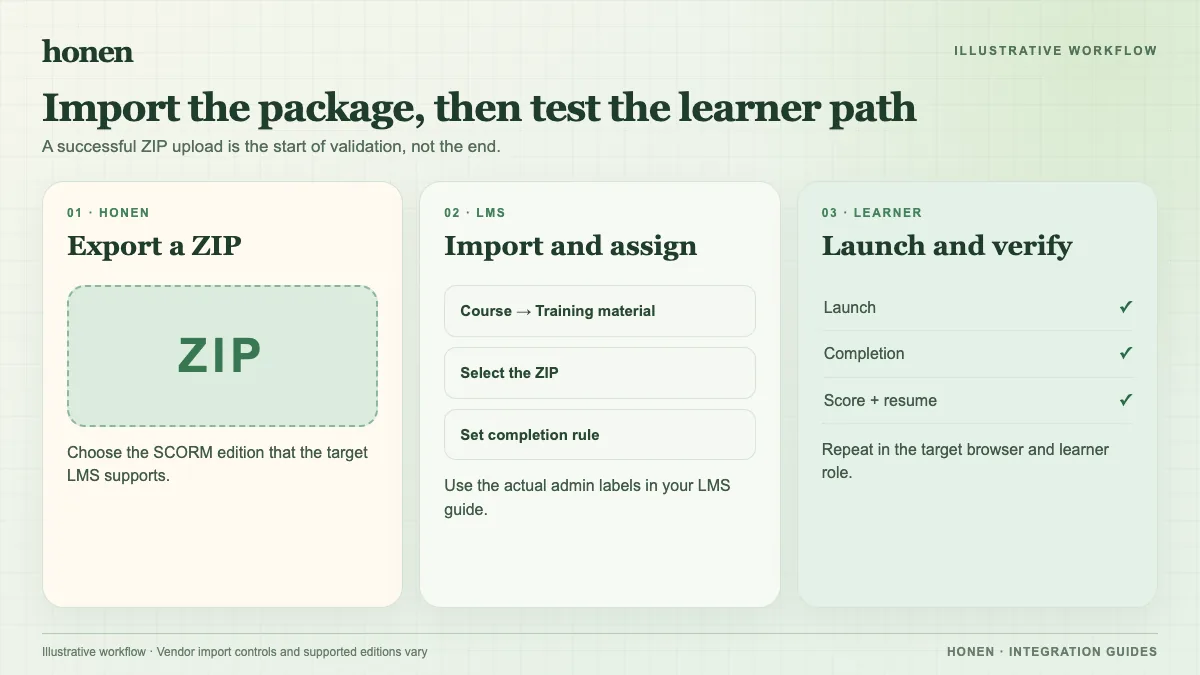
Canvas says its SCORM LTI must be enabled in External Apps at the account level. Ask your Canvas administrator to confirm it is enabled. If the SCORM link is absent from Course Navigation, the instructor cannot follow this upload flow. Canvas says SCORM is unavailable in its beta and test environments.
Canvas documents SCORM 1.2 and SCORM 2004 2nd, 3rd, and 4th Edition support through this tool. Honen exports SCORM 1.2 or SCORM 2004 4th Edition. Export the version your institution has tested.
Upload the ZIP
The steps below follow Instructure's SCORM import guide.
- Open the Canvas course.
- Select SCORM in Course Navigation.
- Select Upload.
- Choose the Honen SCORM ZIP from your computer.
- Choose graded assignment, ungraded assignment, or page.
- Select Go to import the file.
- Open the imported item and preview it.
Choose the import type before you confirm. Canvas says that choice cannot be changed after import. An ungraded assignment does not add a gradebook entry. Canvas says uploaded SCORM assignments default to 100 points possible; adjust the assignment as needed for your course.
Test the learner result
Assign the item to a test learner. Launch it, do part of the course, and exit. Reopen it to test resume. Complete it and check the Canvas assignment result. Honen's SCORM package loads current Honen content, but SCORM reporting still occurs through the browser while the course is open. A closed tab cannot receive a later grade from the package.
Keep source instructions clear
Use one term for each item and one action per step. Honen can help draft and review this controlled-language style for the course. A qualified editor must check the ASD-STE100 dictionary, rules, and domain terms. A successful upload does not establish writing conformity.
Return to Honen with Canvas to compare the LTI and SCORM routes. Read SCORM, cmi5, xAPI, and LTI explained before you choose the delivery standard.
Related guides
Build with Honen
Create a course from your source material. Review the content. Deliver it through your LMS.
Book a demo