How to upload a SCORM package to Blackboard Learn
In an Ultra course, add the ZIP through Course Content. This guide uses Honen with Blackboard Learn as the source course; the Blackboard steps also apply to another valid SCORM package.
SCORM support alone does not verify Honen's hosted launcher in Blackboard Learn. Test the exact ZIP, learner launch, and result in your site before rollout.
Check the prerequisites
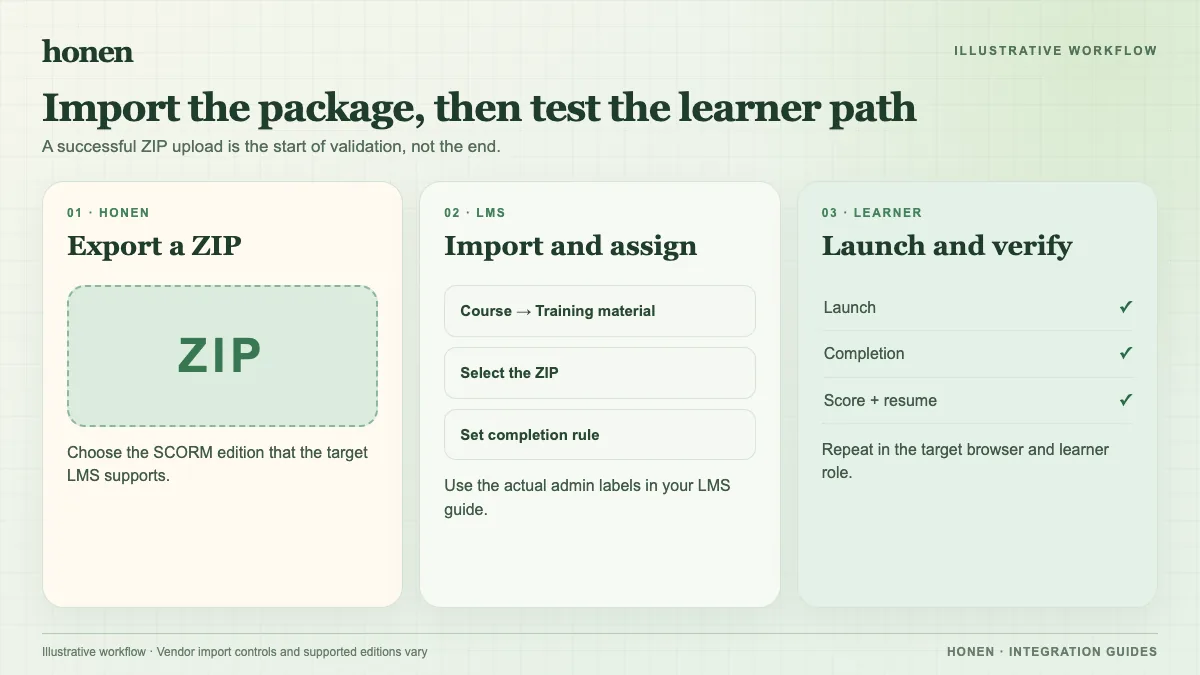
Ask your administrator to confirm that the SCORM Engine is available. It supports SCORM 1.2 and 2004 4th Edition. Export one of those versions from Honen. Keep the ZIP intact.
Upload in an Ultra course
Blackboard's SCORM package guide gives this route:
- Open the course's Course Content page.
- Select +, then Create, then SCORM package.
- In SCORM Settings, select Upload SCORM package and choose the ZIP.
- Set the title, visibility, due date, and attempt count.
- If you need a gradebook entry, select Grade SCORM and set the grading scheme and maximum score.
- Save the package.
Choose the grade settings before import. Blackboard says you cannot change them after import. Course views and permissions can change the available controls.
Test before release
Launch the package as a test learner. Open the Honen course, use its tutor, complete a sample activity, and inspect the Blackboard attempt. Check completion, pass/fail, score, time, and resume behavior that applies to your settings. SCORM sends data through the browser while the course stays open; do not assume it reports after the window closes.
Honen's thin package loads the current course after a content edit. Re-export if package settings change. A qualified editor must check the draft against the approved dictionary, ASD-STE100 rules, and domain terms.
Next step
Build the course with Honen for Blackboard Learn, and read how live SCORM packages work.
Related guides
Build with Honen
Create a course from your source material. Review the content. Deliver it through your LMS.
Book a demo