How to upload a SCORM package to Moodle
Add a SCORM Package activity to a Moodle course and upload the intact ZIP. Use SCORM 1.2 for Moodle's native player. If you build the package in Honen, first review Honen with Moodle.
SCORM support alone does not verify Honen's hosted launcher in Moodle. Test the exact ZIP, learner launch, and result in your site before rollout.
Prepare the ZIP
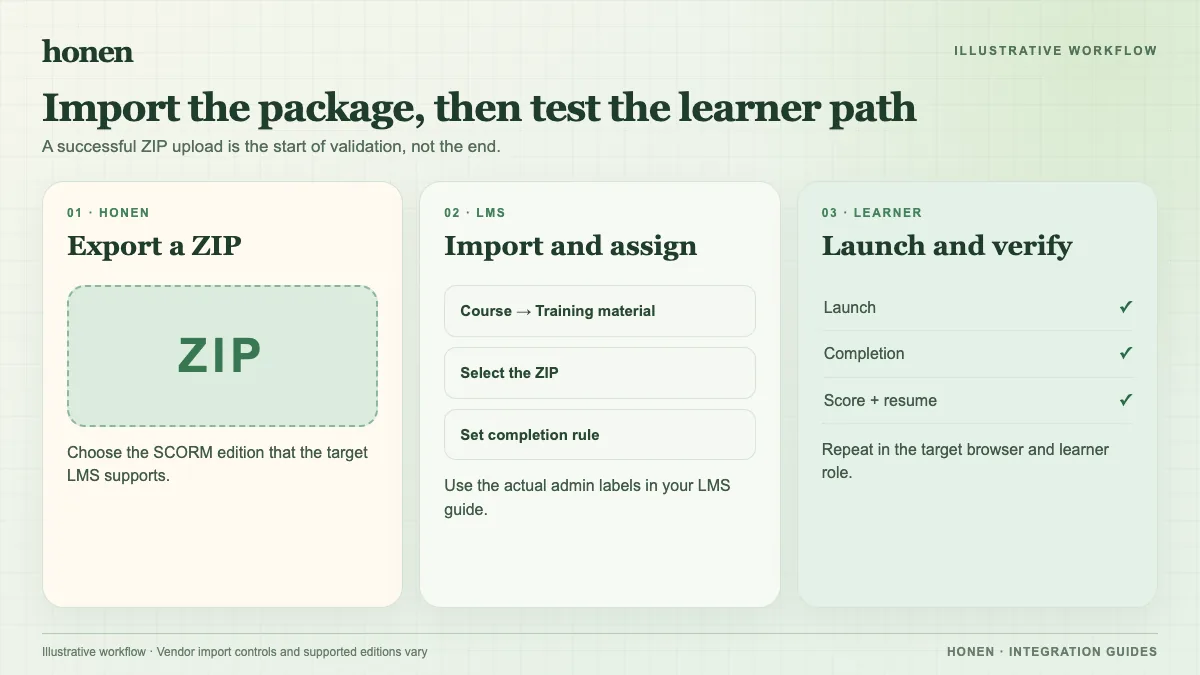
Export SCORM 1.2. Moodle says its core player does not support SCORM 2004. Keep the ZIP intact. Confirm that its root contains imsmanifest.xml. Test the package independently if you suspect a standards problem.
Add the activity
- Open the Moodle course and turn editing on.
- Choose SCORM Package from the activity chooser.
- Give the activity a name and, if needed, a description.
- Upload the ZIP in the Package section.
- Review Appearance and Attempts management. Decide whether the course opens in the current or a new window. Allow pop-ups if you choose a new window.
- Save the activity.
These labels and steps come from Moodle's SCORM activity guide and settings guide. Your theme and permissions may change the layout.
Test the result
Launch the activity as a learner. Finish it, close it normally, and inspect the attempt in the teacher's Reports tab. Check completion, score, time, and resume behavior. SCORM exchanges these values while the learner has the package open. It does not send a server-to-server grade later.
Honen's live package loads current approved content on a later launch without another ZIP upload. Re-test after a material course change. If the course contains technical instructions, use short, active steps and consistent terms. A qualified editor must check the approved dictionary, ASD-STE100 rules, and domain terms.
Next step
Return to Honen with Moodle, or read what a live SCORM package does.
Related guides
Build with Honen
Create a course from your source material. Review the content. Deliver it through your LMS.
Book a demo