Moodle LTI 1.3 integration guide for Honen
Register Honen as an LTI 1.3 external tool in Moodle, review the data and services it may use, then test the course launch and gradebook result. The Honen and Moodle integration page compares this route with SCORM 1.2.
What LTI 1.3 can exchange
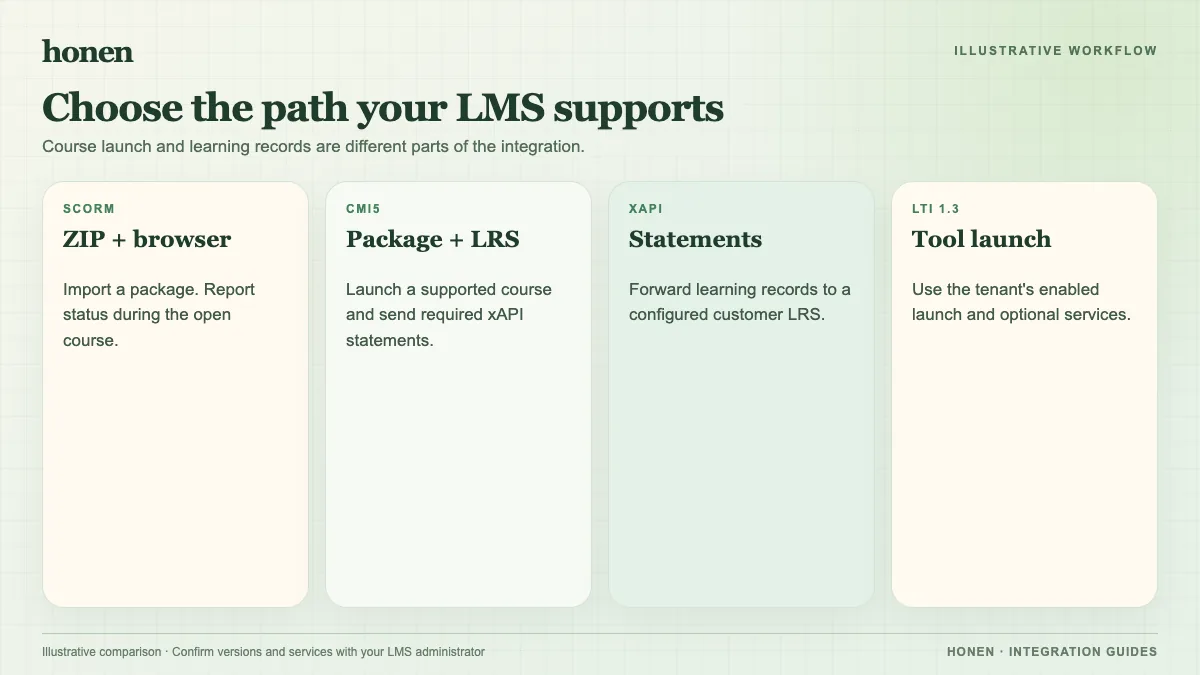
LTI 1.3 gives a secure tool launch. LTI Advantage services can support role and roster access, content selection, and server-to-server grade return. Moodle lets administrators review tool privacy and services before activation. The available data depends on the services granted in your Moodle site and the Honen configuration. Test roles, groups, and grades rather than assuming every field is shared.
Register and test the tool
- Get the LTI registration details for your Honen setup.
- In Moodle site administration, open Plugins > Activity modules > External tool > Manage tools.
- If Honen supplies an LTI Advantage registration URL, enter it in Tool URL and select Add LTI Advantage.
- Review the pending tool's privacy and service permissions. Activate it when the settings match your policy.
- Add the external tool to a test course. Open it as a teacher and a learner.
- Test roster and role access, the selected launch display, and grade return with a real test attempt.
Moodle documents this registration flow. A manual registration uses a different exchange of URLs and identifiers. Use Moodle's current instructions and your Honen registration details for that path; do not reuse a key and secret from legacy LTI.
Embedded or new-window launch
Moodle offers embedded and new-window display settings for external tools. Use an embedded launch when it works with your site's browser and privacy settings. Test a new-window launch if the embedded view fails. The Honen tutor stays in the Honen course in either display mode. Check the learner's sign-in experience before assignment.
When SCORM fits better
SCORM support alone does not verify Honen's hosted launcher in Moodle. Test the exact ZIP, learner launch, and result in your site before rollout.
Choose SCORM 1.2 when your team wants a package activity and does not need LTI services. Moodle's core player supports SCORM 1.2 but not SCORM 2004. Honen's live SCORM package loads current content on a new launch. SCORM reports through the open browser session; LTI grade return uses the enabled service.
For technical course text, use short, active sentences and one instruction per step. Honen can help draft and review this controlled-language style. A qualified editor must check the approved dictionary, ASD-STE100 rules, and domain terms.
Next step
Return to Honen with Moodle and use the integration chooser to compare paths.
Related guides
Build with Honen
Create a course from your source material. Review the content. Deliver it through your LMS.
Book a demo