How to upload a SCORM package to UKG Pro Learning
Add the ZIP as a course lecture. UKG documents the path in its Add Lectures to a Course guide. Confirm the package version in your tenant because current and older UKG pages differ. If you need a course to upload, see Honen for UKG Pro Learning.
Prepare the ZIP
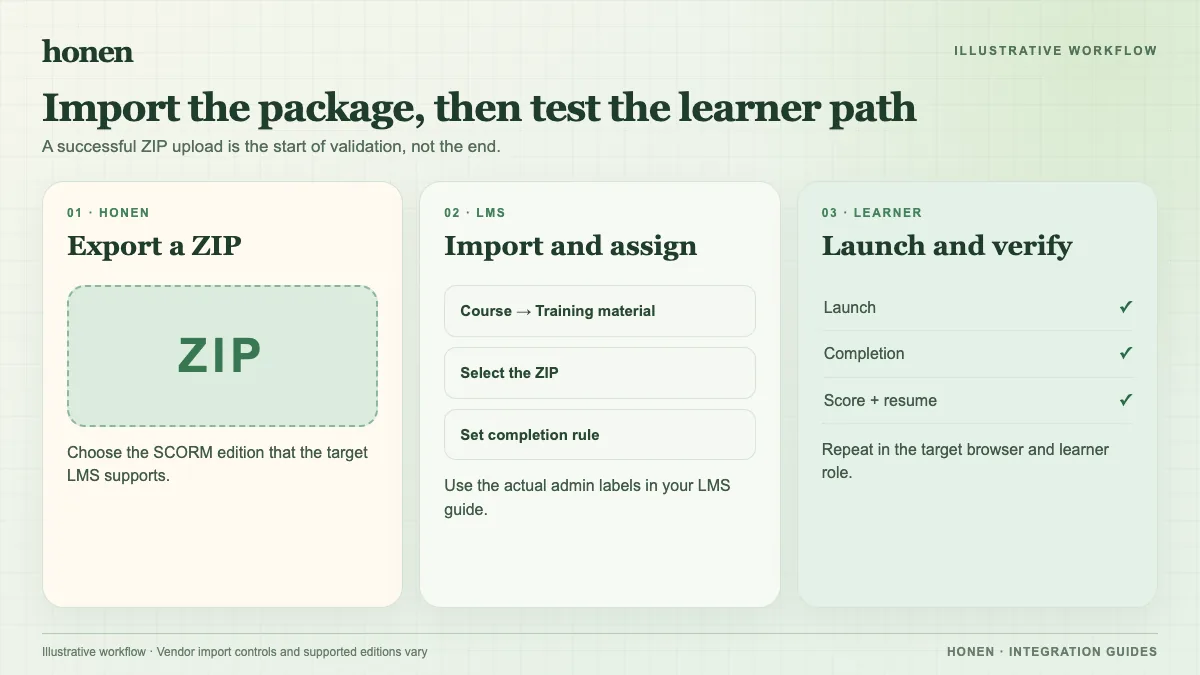
Export the SCORM version your tenant accepts. UKG's current SCORM Files Guide lists 1.2 and 2004 multiple editions. It says the ZIP must not contain another ZIP. Set a clear completion action and score rule before export. Keep a test learner account ready.
Upload the lecture
- Go to Academy Workspace → Training Admin → Manage Training → Courses.
- Open the target course by title.
- Select Lectures.
- Select Upload SCORM.
- Choose the ZIP from your computer or available storage source.
- Select Upload.
- Check the lecture title and description.
UKG says the upload also adds the item to your resources. Check the course's handling settings in your tenant before release.
Test the learner result
Open the lecture as a learner. Complete the final action and exit. Check completion, score, and resume. SCORM data returns while the course is open. If tracking fails, inspect the package's final status and the browser launch.
If Honen drafted the lesson, ask a qualified editor to check ASD-STE100 rules and approved terms. Use short sentences and one action per instruction. Repeat the review after a source change.
Next step
Use the UKG Pro Learning integration overview to plan updates. Read what a live SCORM package is for the update model.
Related guides
Build with Honen
Create a course from your source material. Review the content. Deliver it through your LMS.
Book a demo