How to upload a Honen SCORM package to Schoox
Export the reviewed Honen course as a SCORM ZIP, then add it as a lecture in your Schoox course. The Honen and Schoox overview explains the course design.
Add the lecture
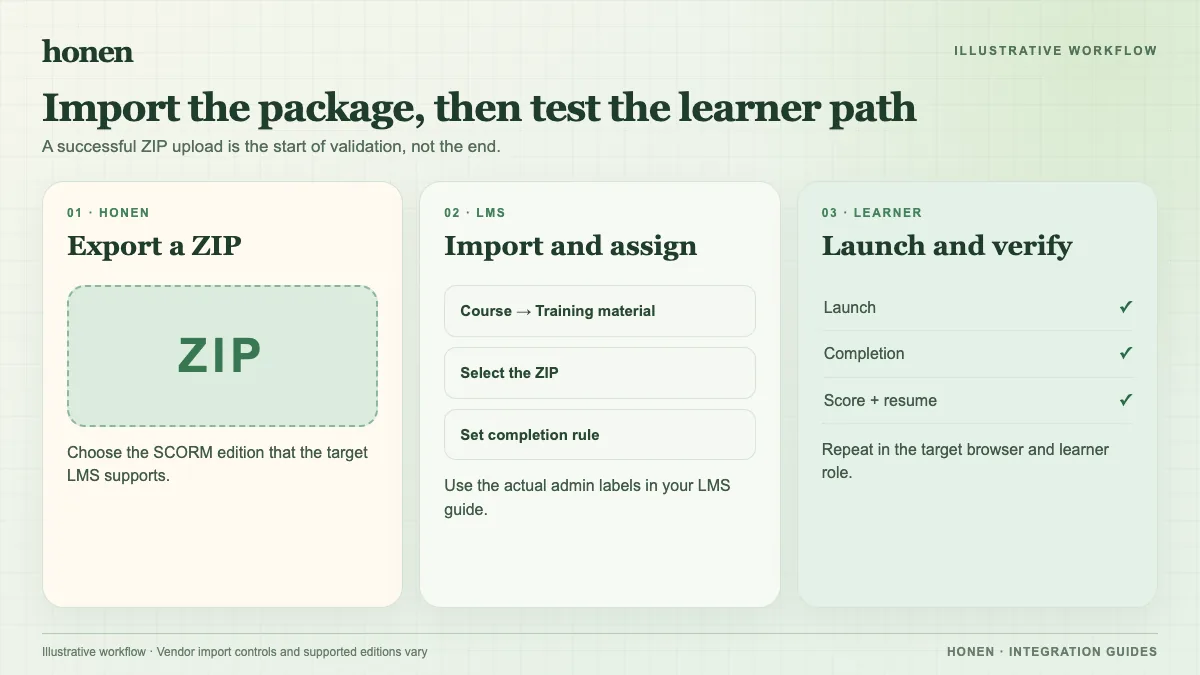
- In Schoox, open Training > All Courses and select Manage Course for the course.
- Select Edit Lectures.
- Choose Upload Scorm and add the ZIP. Enter the lecture title and description.
- Run the lecture as a learner before assigning it widely.
These controls come from Schoox's current lecture guide. The ZIP must not contain another ZIP; Schoox lists this as an import constraint. Use SCORM Cloud to isolate a package fault before a production upload, as Schoox recommends.
Before export, ask a qualified editor to check the approved dictionary, ASD-STE100 rules, domain terms, and each safety or clinical fact.
Check mobile and completion
Run the course on a phone and a desktop. Test completion, score, time, and resume. Schoox says mobile multitasking can interrupt SCORM, and learners should use Close and Exit to save progress. See its SCORM best practices. Honen's thin package loads new approved content on a later launch only if hosted launch works in your academy. SCORM reports while the course remains open.
Return to Honen with Schoox and read how live SCORM updates work.
Related guides
Build with Honen
Create a course from your source material. Review the content. Deliver it through your LMS.
Book a demo