How to upload a SCORM package to Sana Learn
Sana imports SCORM 1.2 and 2004 ZIP files through Manage → Content → Import → SCORM. These steps follow Sana's current import guide. If you need to build a course first, see Honen for Sana.
Prepare the ZIP
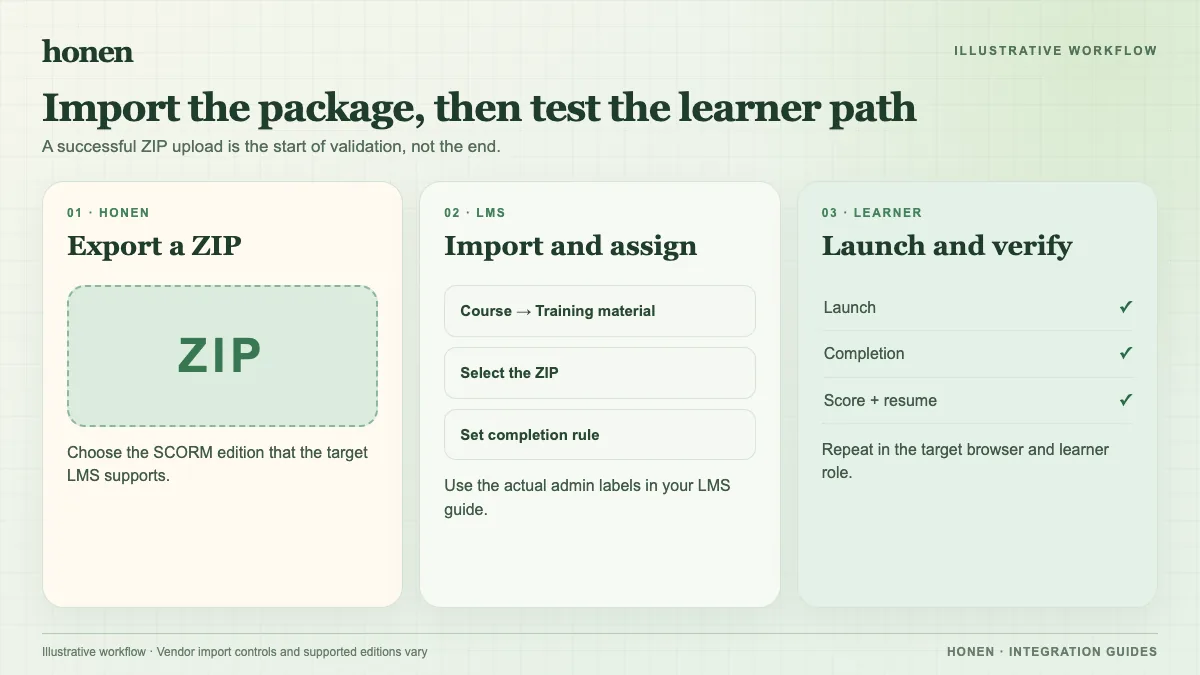
Export SCORM 1.2 or 2004. Keep the package zipped. Set a clear completion action and score rule before export. If the package loads hosted Honen content, confirm learners can reach that host from their network.
Import the course
- Open Manage → Content in Sana.
- Select Import at the top right.
- Select SCORM.
- Choose the ZIP from your computer.
- Open the imported course in Manage.
- Invite a test learner.
Sana says a direct-link import does not register completion automatically. Choose SCORM when you need the package to send completion. Test the actual result; an import success message is not a tracking test.
Check the learner result and updates
Launch as a learner. Complete the final action and exit. Check completion, score, and resume. SCORM data returns while the course is open.
Sana's Update SCORM package option may need an account flag. A major change to the package item identifier can remove saved progress. Test an in-progress learner before a structural update.
If Honen drafted the lesson, a qualified editor must check ASD-STE100 rules and approved terms. Use short sentences and one action per instruction.
Next step
Use the Sana overview for revision planning. Read what a live SCORM package is for the hosted update model.
Related guides
Build with Honen
Create a course from your source material. Review the content. Deliver it through your LMS.
Book a demo