SCORM authoring tool for Sana Learn: plan the update
Sana Learn accepts SCORM 1.2 and 2004 ZIP imports. Honen can help you draft a live course for that path. The important authoring decision is how updates affect learner progress. See Honen for Sana for the full workflow.
Set completion before export
Define the final action that completes the course. Set a score rule if the lesson has an assessment. Export a SCORM 1.2 or 2004 ZIP. Test launch, completion, and resume with a learner account. SCORM data returns while the course is open.
Sana's import guide says major package changes can need a new item identifier in imsmanifest.xml. That change creates a new storage property and can remove saved progress. Completion status remains. Test an in-progress attempt before you make such a change.
Review controlled language
Start with an approved source. Have its owner check facts, questions, and tutor replies. Write short sentences and one approved term per concept. Put one action in each instruction. A qualified editor must check ASD-STE100 rules and domain terms. Honen's draft is not certified.
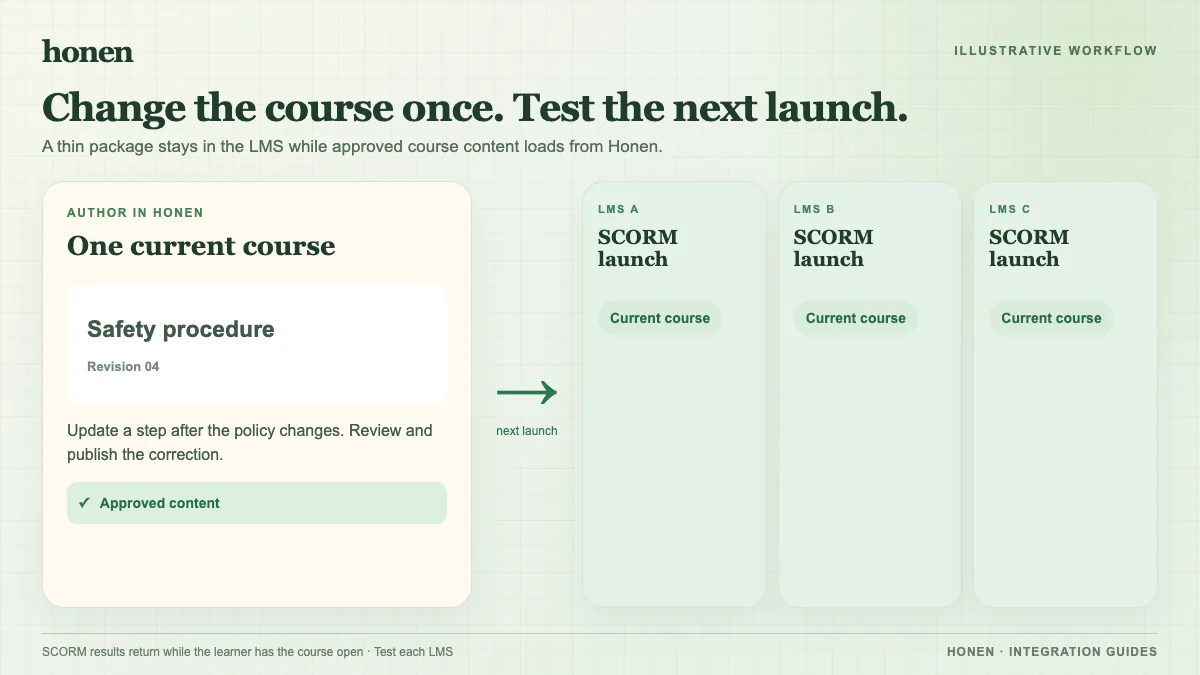
Honen-hosted text can load through an existing package without another ZIP upload. Test structural and tracking changes. A live course needs access to Honen's host.
Compare Sana's own connector
Sana can export its native courses as live SCORM connector packages. That is a different workflow from importing a Honen package into Sana. Compare both where you need cross-LMS delivery.
Next step
Follow the Sana upload guide. Return to the Sana overview for updates. Read SCORM, cmi5, xAPI, and LTI explained for format choices.
Related guides
Build with Honen
Create a course from your source material. Review the content. Deliver it through your LMS.
Book a demo