How to import Honen SCORM into SafetyCulture Training
Mitti by SafetyCulture accepts a SCORM package as a lesson slide. It does not treat the import as a whole native course. See Honen with SafetyCulture Training for the delivery decision.
Add the slide
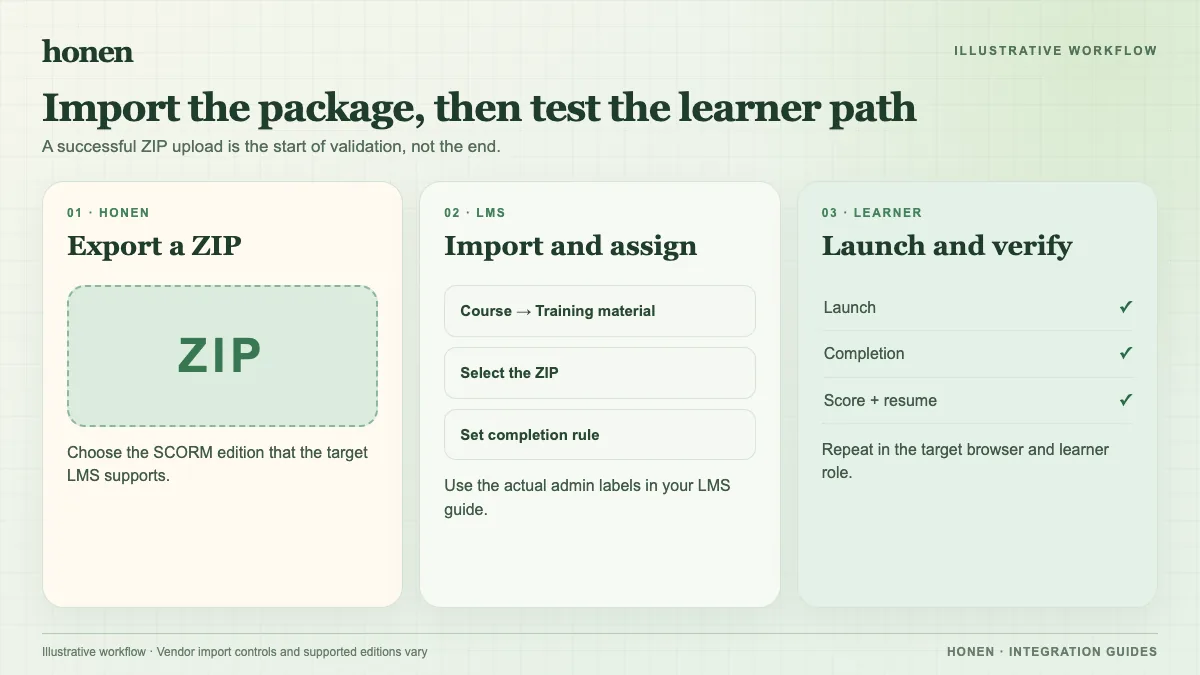
- Confirm a Premium or Enterprise plan and Training: Create courses (restricted) permission.
- In the web app, open Training. On Learn, choose Content > Courses.
- Open the course. Edit it if it is already published.
- Add or open a standard lesson, then select New slide > Advanced > SCORM.
- Upload the reviewed Honen ZIP in SCORM file. Configure the slide and publish the course when ready.
These steps and requirements come from Mitti's SCORM import guide. That guide does not state a SCORM edition or maximum size, so confirm those for your account before export.
Before export, ask a qualified editor to check the approved dictionary, ASD-STE100 rules, domain terms, and each safety or clinical fact.
Check the outcome
Run the slide on a worker's phone and desktop. Verify launch, resume, and completion. A SCORM slide score does not count toward Mitti course scoring, and the slide performance dashboard is unavailable for SCORM. Use native questions when the course score is a required record. A hosted Honen thin package needs a tenant test, especially if workers use offline mode. SCORM reports only while the course is open.
Return to Honen with SafetyCulture Training and read what a live SCORM package does.
Related guides
Build with Honen
Create a course from your source material. Review the content. Deliver it through your LMS.
Book a demo