How to upload a SCORM package to Tovuti
Upload the ZIP to Tovuti's eLearning Packages library first. Then select it for a course or lesson. Tovuti's current help page documents this flow. Need a course to upload? See Honen for Tovuti.
Prepare the package
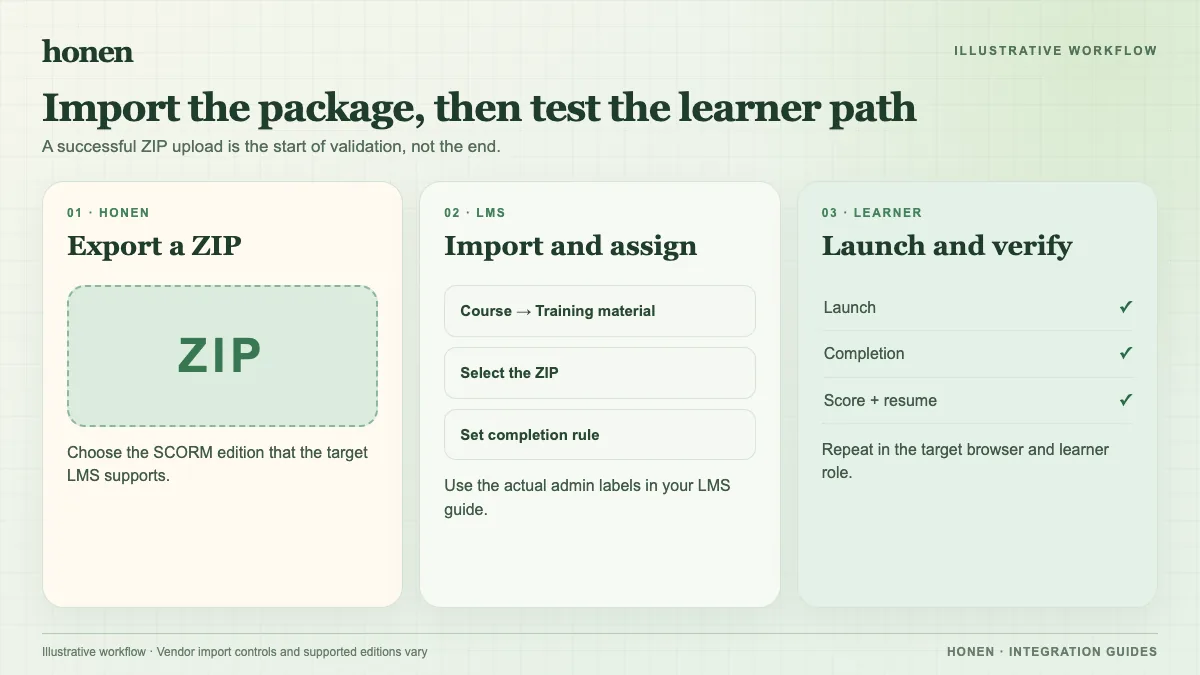
Export a single-SCO SCORM 1.2 or 2004 ZIP. Tovuti supports SCORM 2004 2nd, 3rd, and 4th editions. It does not support multiple SCOs in one package. Set a clear completion action and score rule before export.
Add the package record
- Go to Content Creation → eLearning Packages.
- Select New.
- In Details, enter a title and choose the published status.
- Select Browse and upload the ZIP.
- In Settings, check frame height, learner name format, and User ID Value.
- Save the package record.
Tovuti fills the SCORM Version field after the upload. Use the record to verify that it recognized the format.
Add it to a course or lesson
For a course, open Learning → Courses and edit its Content tab. Enable Use Library Content, choose eLearning Packages, and select the uploaded package. For a lesson, use its Content Library tab. Tovuti documents both paths.
Launch as a test learner. Complete the final action and exit. Check status and score. SCORM data returns while the course is open. If Honen drafted the lesson, a qualified editor must check ASD-STE100 rules and approved terms before release.
Next step
Use the Tovuti overview for reporting and updates. Read what a live SCORM package is before a revision.
Related guides
Build with Honen
Create a course from your source material. Review the content. Deliver it through your LMS.
Book a demo