How to upload a SCORM package to LearnUpon
Open a LearnUpon course, add a SCORM module, and upload the ZIP. LearnUpon supports SCORM 1.2 and SCORM 2004 3rd and 4th editions. These steps follow LearnUpon's current upload guide. If you need a course to upload, see Honen for LearnUpon.
Prepare the ZIP
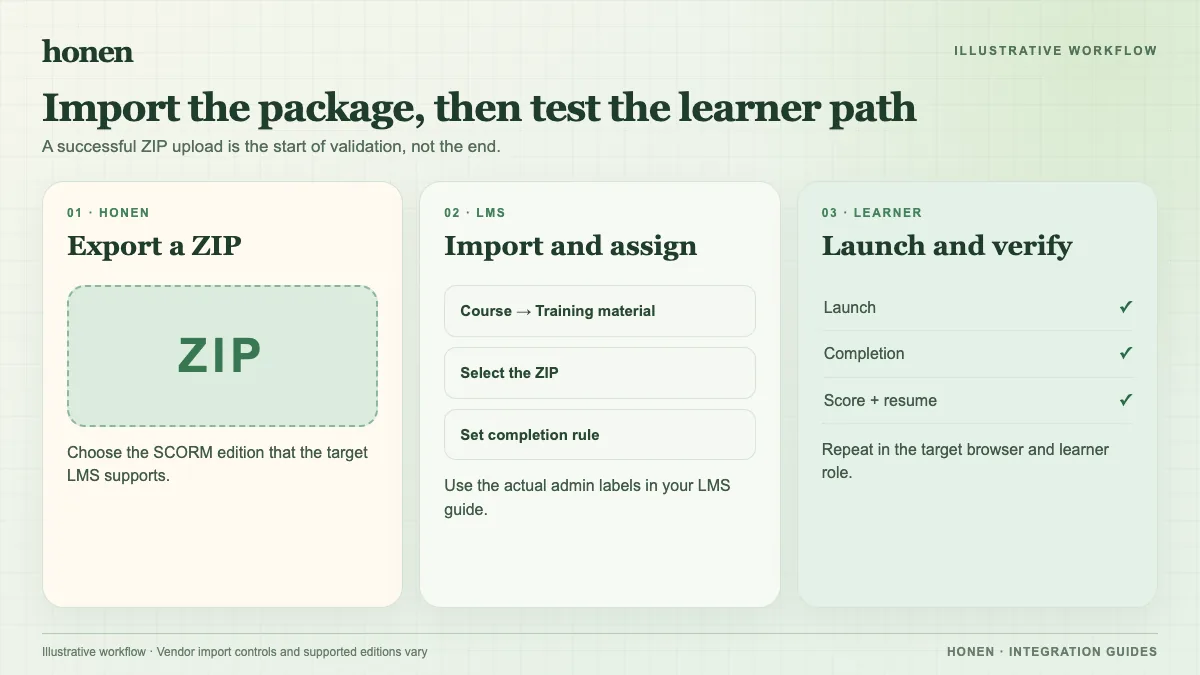
Export the version your course requires. LearnUpon limits a compressed upload to 2.5 GB. Keep an original copy of the ZIP; LearnUpon says the uploaded file is combined with platform code and cannot be downloaded again for editing or use in another LMS. Set completion and score rules in the authoring tool.
Upload to the course
- In LearnUpon, go to Courses → your course name.
- Open Content.
- Select Add SCORM or Tin Can → Upload File.
- Choose the SCORM ZIP from your drive.
- Wait for encoding and save the module.
To edit the module, use More → Edit on the course Content page. Check the title and optional description. Keep LearnUpon's default LMSFinish is received completion rule unless Support advises another setting. Set a mastery score only when the content needs it. Test window behavior on the devices your learners use.
Test the learner path
Launch the module from the target portal. Complete the final action and exit. Check the resulting status and score. If LearnUpon does not mark it complete, confirm that the package sent its final status while the course was open. Repeat the test for each distinct customer portal or learner setup.
If Honen drafted the lesson, have a qualified editor check ASD-STE100 rules and approved terminology before the upload. Use short sentences and one action per instruction. Recheck those rules after a source revision.
Next step
Use the LearnUpon integration overview to plan updates. Read what a live SCORM package is for the Honen update model.
Related guides
Build with Honen
Create a course from your source material. Review the content. Deliver it through your LMS.
Book a demo