How to upload SCORM to Kallidus Learn
Import the SCORM ZIP through the Kallidus Course Import Wizard. The file becomes a Lesson, and the wizard can also create a Course. For a Honen package, see Honen with Kallidus Learn.
Prepare the ZIP
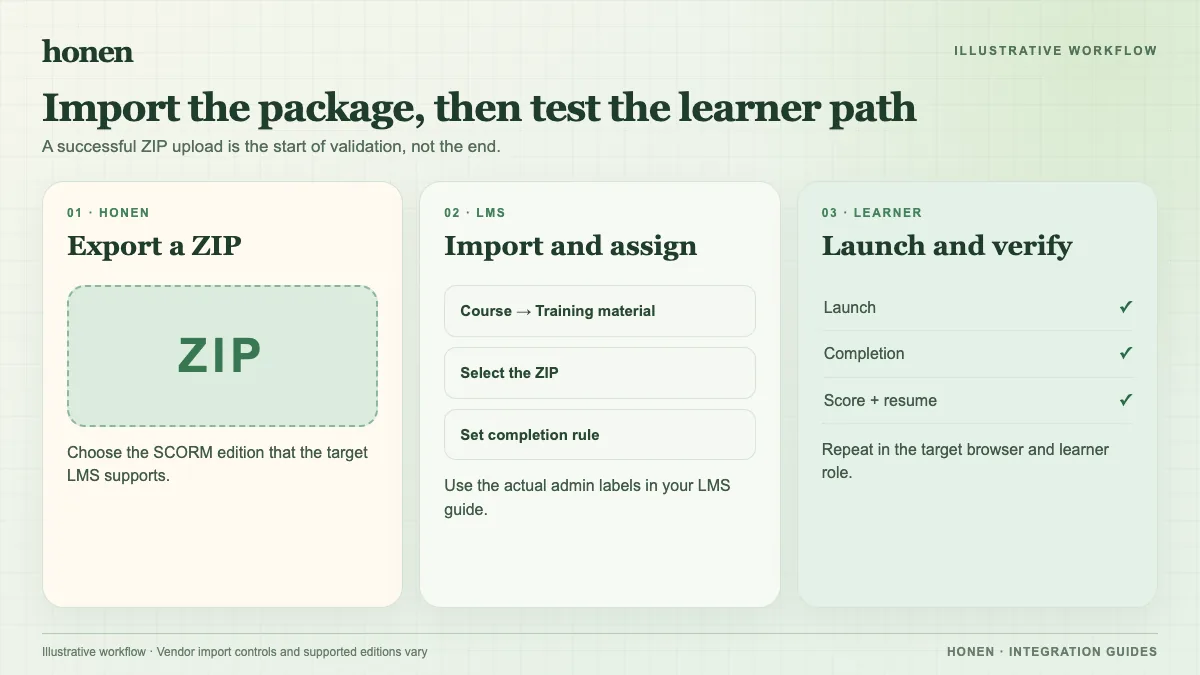
Kallidus sets a 1.7 GB import limit. Ask Support about a larger file. Avoid special characters in the file name. If you choose SCORM 2004, use a single-SCO package and test it.
Import the Lesson
- Open Learn admin and select Course.
- Select Import to open the Course Import Wizard.
- Select Choose file, then Start Upload.
- Keep Create new course selected if you want a new Course. Clear it if you will assign the Lesson elsewhere.
- Set Course title, code, category, and card image.
- Set Lesson title, code, and estimated duration.
- Select Create Lesson and Course to finish.
These are Kallidus's documented steps. The wizard queues imports when several administrators upload at once. Wait for processing before testing.
Test tracking
Use Preview Lesson to inspect screens, but remember it is browse mode without progress recording. Run a learner attempt to check completion, score, time, and resume. For a Honen thin package, also revise approved content and relaunch to verify the live path. SCORM reports during the open browser session.
Keep instructions short and active. A qualified editor must check approved words, ASD-STE100 rules, and domain terms; Honen helps draft but does not certify conformance.
Next step
Return to Honen with Kallidus Learn and read what a live SCORM package does.
Related guides
Build with Honen
Create a course from your source material. Review the content. Deliver it through your LMS.
Book a demo