How to upload a SCORM package to ILIAS
Import the ZIP as a SCORM learning module, then make it available to learners. Export the course first from Honen with ILIAS.
SCORM support alone does not verify Honen's hosted launcher in ILIAS. Test the exact ZIP, learner launch, and result in your site before rollout.
Choose a tested format
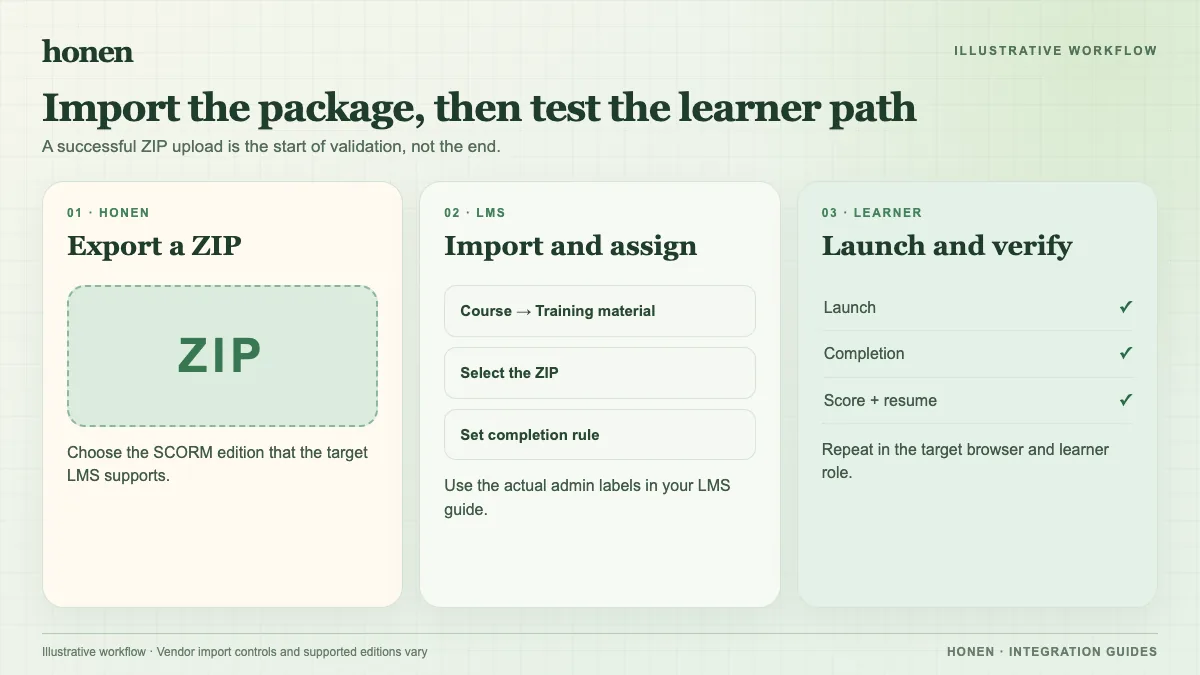
The ILIAS project documents native SCORM 1.2 and 2004 support. Use Honen's SCORM 1.2 ZIP for a first pilot. Keep the ZIP intact. Test a 2004 4th Edition export only after your ILIAS operator confirms that exact edition in the local release.
Import a SCORM learning module
An ILIAS installation guide gives this workflow:
- Open the intended ILIAS course or repository area.
- Add a SCORM learning module object.
- Choose Import SCORM learning module and select the matching package type.
- Select the Honen ZIP and import it.
- Open the module settings and make it available or online.
- Save the settings.
ILIAS 10 changed parts of object creation and import, according to the project release page. Follow the controls in your installation if their position differs. Do not upload the ZIP as a generic file object when you need SCORM tracking.
Test the tracking rule
Open the module as a learner. Use the tutor and complete a sample activity. Confirm completion, pass/fail, score, time, and resume state in the ILIAS view while the course remains open. SCORM reports through the browser. Confirm the ILIAS learning-progress rule your course uses.
Honen's live ZIP loads current content after a course edit; package setting changes require re-export. A qualified editor must check the draft against the approved dictionary, ASD-STE100 rules, and domain terms.
Next step
Build the course with Honen for ILIAS, and read how live SCORM packages work.
Related guides
Build with Honen
Create a course from your source material. Review the content. Deliver it through your LMS.
Book a demo