How to upload SCORM to Eloomi Infinite
Eloomi lets Play and Plus subscribers create a SCORM Course or add a SCORM page to a built Course. The Honen and Eloomi overview explains the Honen package path.
Check the ZIP
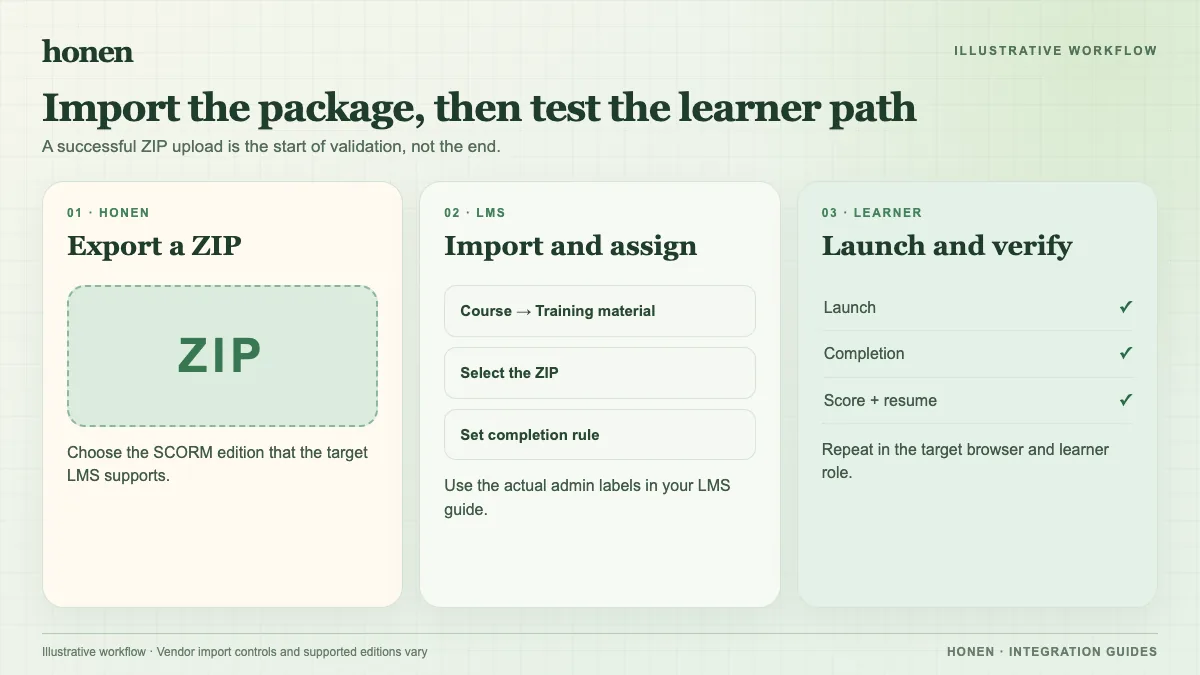
Eloomi accepts SCORM 1.2 and 2004, prefers 2004, and limits the ZIP to 1 GB. It does not support multi-SCO packages. Use a flat single-SCO export.
Create a SCORM Course
- Open Admin > Learning > Courses.
- Select New > Upload SCORM or AICC package.
- Upload or drag the SCORM ZIP into the course.
- Set the course details and select Assign when it is ready.
For a mixed course, use New > Build Course > Add Page > SCORM page, then attach the ZIP. These are Eloomi's documented routes. A SCORM page also offers Replace the file and Reset the SCORM progress. Reset affects all assigned learners and cannot be undone; use it only for a planned reset.
Test completion and quiz detail
Launch as a learner and check completion, score, time, and resume. To see question-level data, enable Include in quiz reporting for the Course or page. The package must send interactions. Eloomi's report guide says the detail appears after completion. Test a Honen thin package's hosted update on a later launch. SCORM sends data while the browser course is open.
Use short, active course instructions. Honen helps draft and review controlled language; a qualified editor must check the approved dictionary, ASD-STE100 rules, and domain terms.
Next step
Return to Honen with Eloomi Infinite and read what a live SCORM package does.
Related guides
Build with Honen
Create a course from your source material. Review the content. Deliver it through your LMS.
Book a demo