How to upload SCORM to Bridge LMS
Bridge lets an author upload a zipped SCORM course from Author > Courses. It supports SCORM 1.2 and 2004, 2nd through 4th editions. For a Honen package, first read Honen with Bridge LMS.
Upload and configure
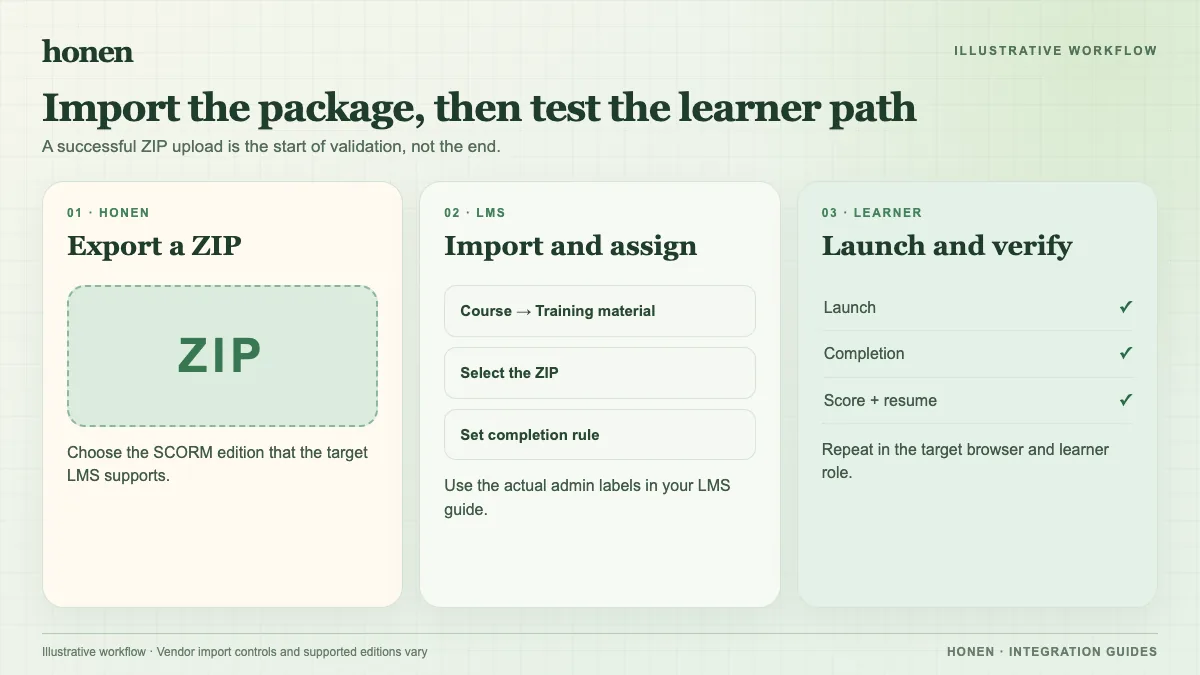
- Open Author > Courses in Bridge.
- Select upload course and add the SCORM ZIP.
- Review the title and description that Bridge reads from the package.
- Open More Settings. Set the launch window, due date, required score, and attempt rule.
- Set learner relevancy as required, recommended, or Learning Library availability.
- Publish the course and test with a learner account.
These labels follow Bridge's upload instructions. A published course stays hidden from learners if relevancy is not set.
Test the required data
Bridge requires two of completion status, success status, and score. Test a pass and a fail. If a quiz has a passing score, make its threshold agree with Bridge's required score. Check time and resume after leaving and returning. The package sends SCORM values while the browser course is open.
If you use a Honen thin package, relaunch after an approved edit to verify live content and reporting. If you replace the ZIP in Bridge, use the existing course's replace action to retain its ID and history. Bridge says in-progress learners can restart after a replacement.
Write short, active course instructions. Honen helps draft and review controlled language; a qualified editor must check the approved dictionary, ASD-STE100 rules, and domain terms.
Next step
Return to Honen with Bridge LMS and read what a live SCORM package does.
Related guides
Build with Honen
Create a course from your source material. Review the content. Deliver it through your LMS.
Book a demo