
Bring Honen courses and graded assignments into Canvas through LTI 1.3. Have a Canvas account administrator and a Honen workspace administrator complete the registration together.
1. Prepare the Honen connection
- In the intended team workspace, open Organization → Integrations → Your LMS → Canvas.
- Under LTI app branding, choose the app name and logo for the new installation. Choose Save branding after a change.
- Choose How learners open Honen: Embedded, Open in new tab, or Always show button.
- Choose What learners land on: the Honen hub or Straight to content. For the hub, choose whether courses open in place or a new tab.
- Open Advanced options to review the grade policy and role mappings.
- Copy the Dynamic registration URL after selecting the intended options.
Keep the registration URL within your administrator setup process. For the available options and their effects, see LTI settings and reporting.
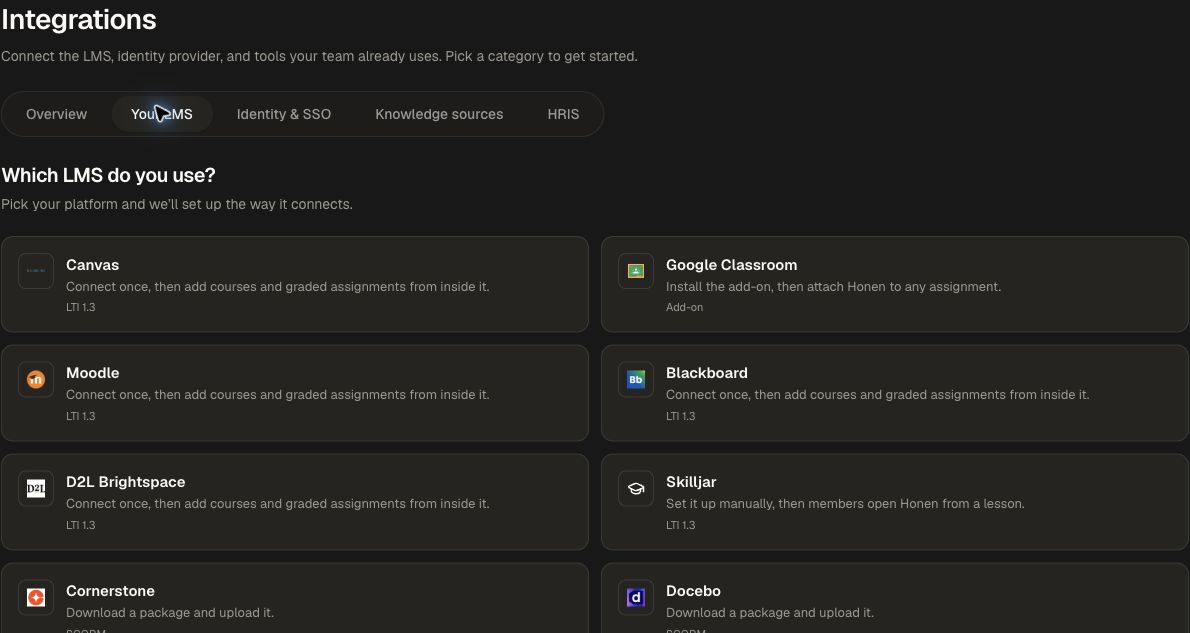
2. Register in Canvas
- Open Admin → Developer Keys → + Developer Key → + LTI Registration.
- Paste Honen's registration URL and select Continue.
- Review the registration and enable it.
- Open Settings → Apps → Manage → Honen and the installed deployment.
- Change availability from Not Available to Available and save.
- Return to Honen and confirm the connection appears under Your LMS connections.
For Canvas installations using a manually configured LTI Key, follow Manual LTI registration with the values supplied by Canvas.
3. Place learning inside a course
- As an instructor, open the intended Canvas course.
- From an assignment or module, add the Honen external tool.
- In Honen's content picker, choose the course or graded assignment.
- Complete the placement in Canvas.
- For gradebook reporting, use a graded assignment placement and confirm its points and selected passback policy.
A course placement gives learners an entry point; a graded assignment placement adds the assessment/reporting relationship. Choose the one that matches your teaching goal.
4. Verify the learner experience
Launch the placement with a test learner. Confirm the correct course and class context, complete the selected requirement, and inspect the Canvas gradebook when using a graded placement. If roster sync is part of your rollout, check the mapped Honen group and its members too.
Repeat the launch with an instructor to verify the class-management experience and role mapping. Use group management and LTI settings to review the Honen side.
Manage the installation
Use Your LMS connections → Edit settings in Honen to change launch behavior, landing experience, role mappings, or grade defaults. Select Save settings, then test the affected flow.
To keep Honen inside Canvas courses only, use Admin → Apps → Honen → Configuration → Edit in Canvas and turn off Global Navigation. Manage the installed app's displayed name and logo in Canvas when updating an existing deployment.
Return to LMS Integrations to compare delivery options, or use LTI Advantage to review registration, learner launch, and grade reporting.