
Give an Agent a repeatable task. An automation supplies the instructions and trigger; the selected Agent supplies its model, tools, and permissions.
The example uses Northstar Onboarding Guide to summarize an approved checklist and cite its source. Start with a manual task, review its answer, then choose the recurring schedule that fits your team.
1. Start from the Agent
Open your Agent's Overview and choose Automations → Create new. The Agent is preselected. You can also open Agents → Automations → New automation or choose a starter such as Knowledge base drift.
2. Write one clear task
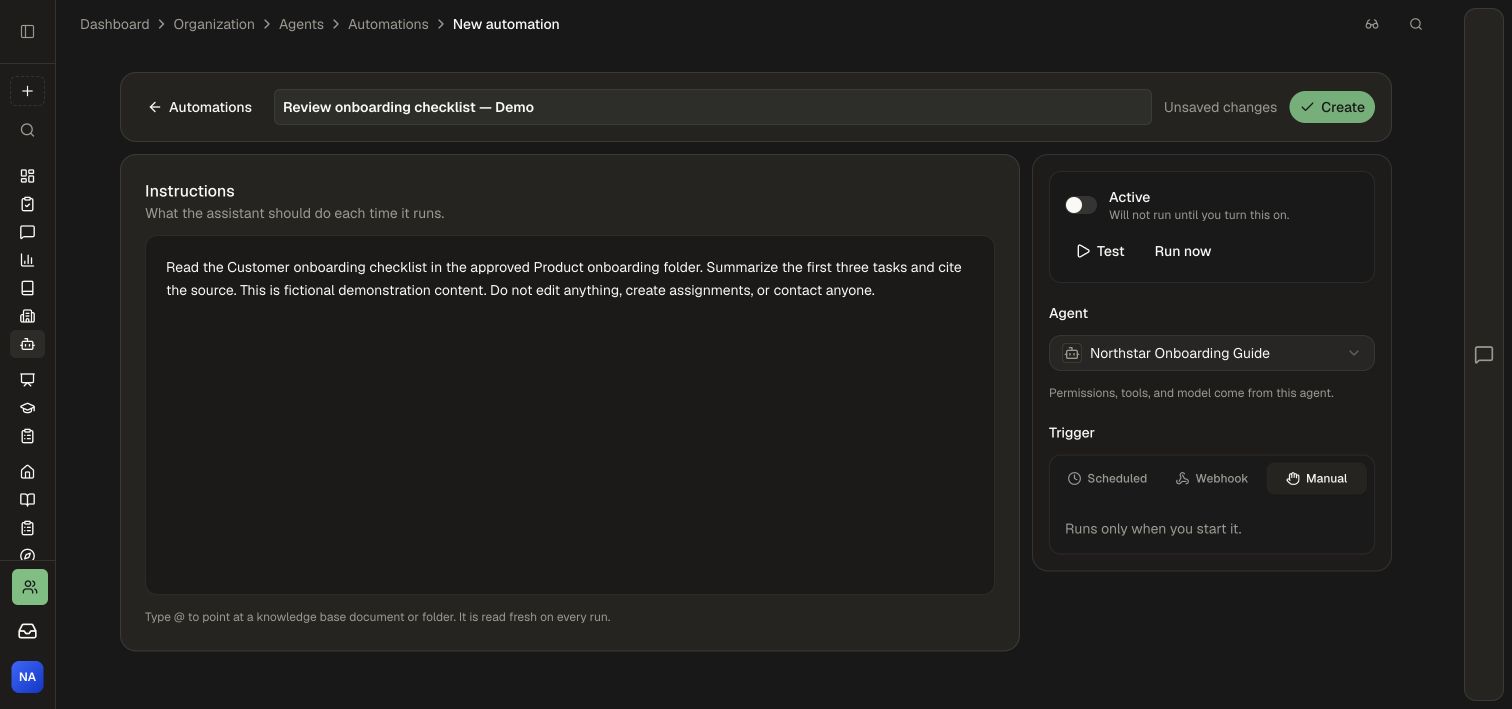
Give the automation a name. In Instructions, describe the input, work, output, and limits. Use @ to reference a Knowledge Base document or folder the Agent can access.
Read the Customer onboarding checklist in Product onboarding. Summarize the first three tasks and cite the source. Keep this task read-only.
Select Northstar Onboarding Guide in Agent. For this example, its Knowledge Base access is Read, limited to Product onboarding; its other content and management permissions and all channels are off. See Create a knowledge Agent to set up the example Agent.
3. Choose a trigger
For a task you will start yourself, select Manual. The editor explains that it runs only when you start it and displays Run now. Keep Active off while preparing the task.
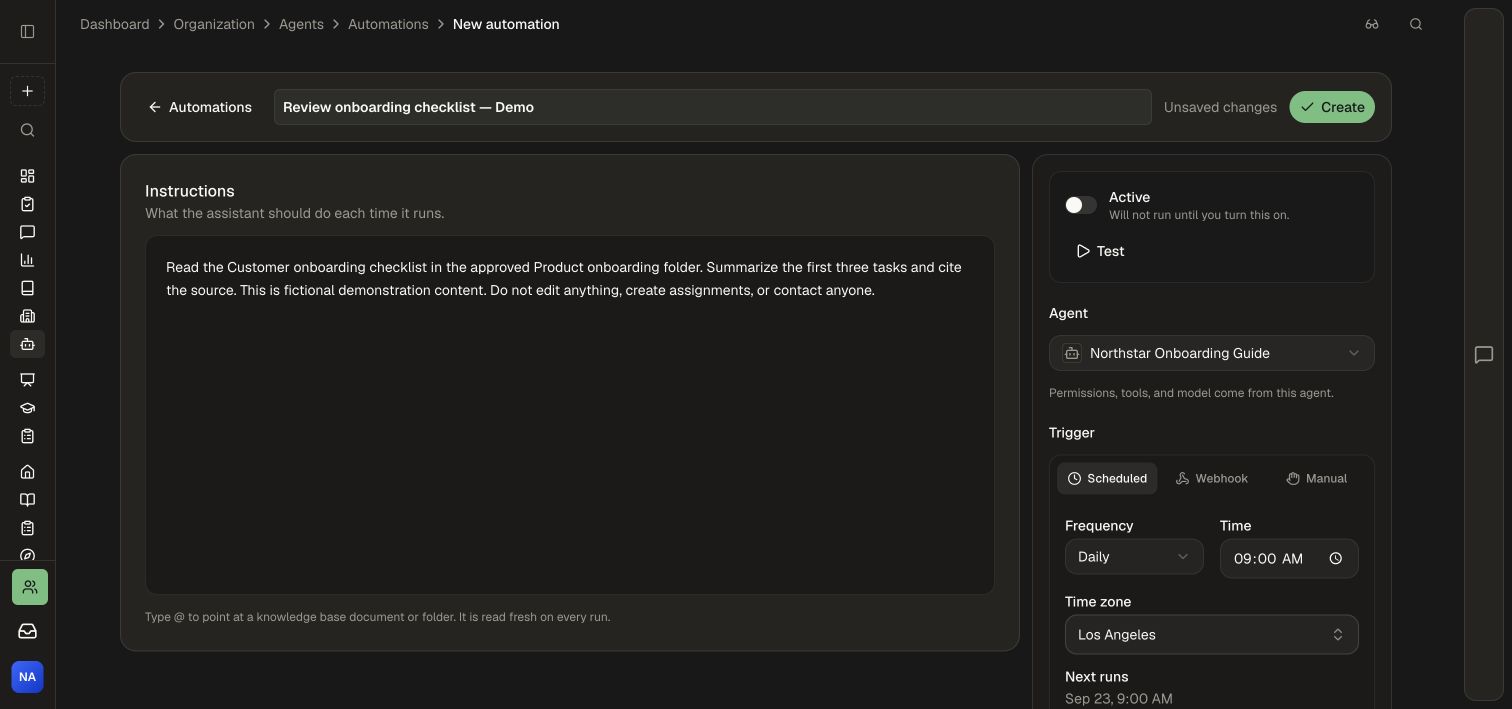
For recurring work, select Scheduled, then choose Frequency, Time, and Time zone. Review Next runs to confirm the schedule is what you intend.
Webhook is the third trigger option. Its editor says to save the automation to obtain its URL and signing secret. This is an incoming automation trigger, separate from outbound webhooks under Developers.
4. Save the automation
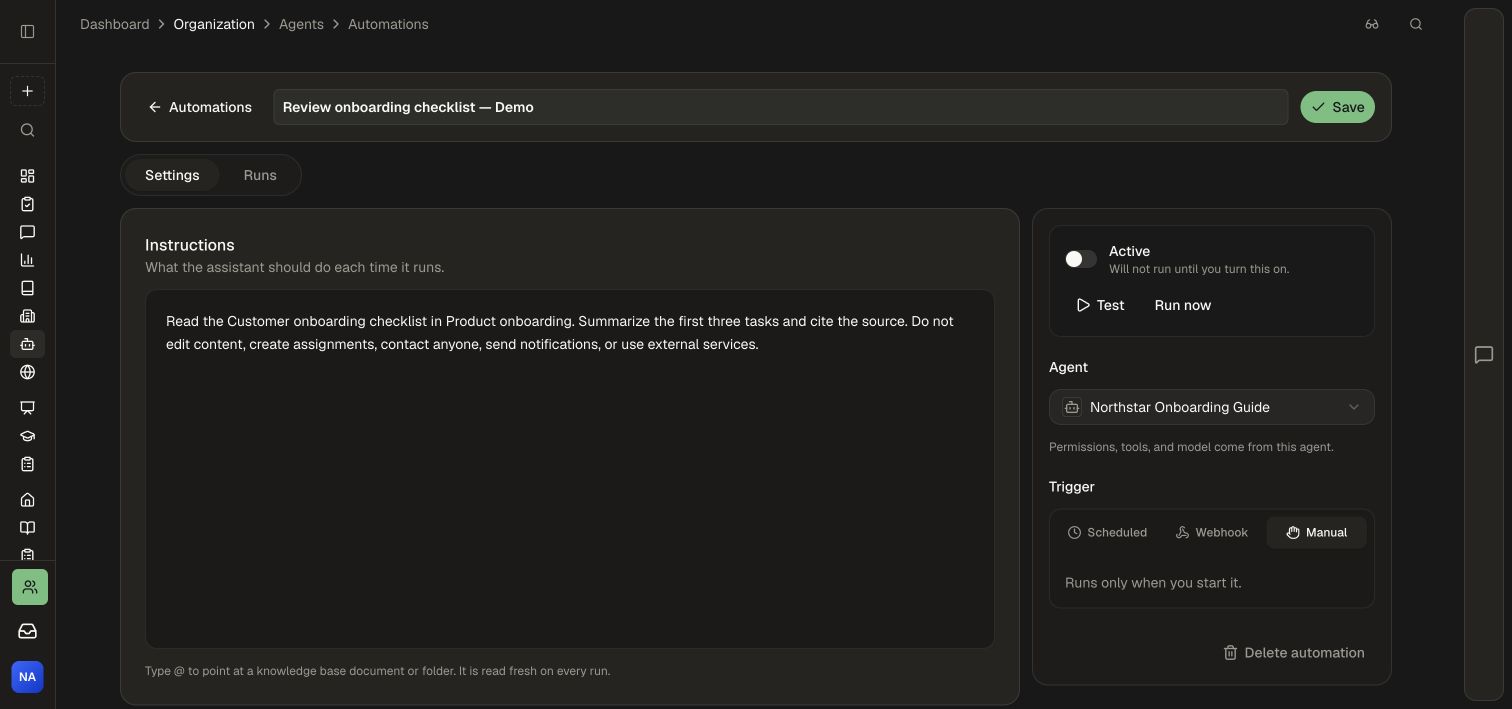
Choose Create. The saved automation page gives you its settings, test action, and run history.
The saved page has Settings and Runs tabs and a Save button. Confirm the Agent, instructions, Manual trigger, and Active switch are still correct.
5. Test and check the answer
Review the instructions and Agent access, then choose Test once. Test saves the current form, executes the Agent’s tools, and opens the run. Automatic result notifications are skipped for test runs. This example only reads the checklist.
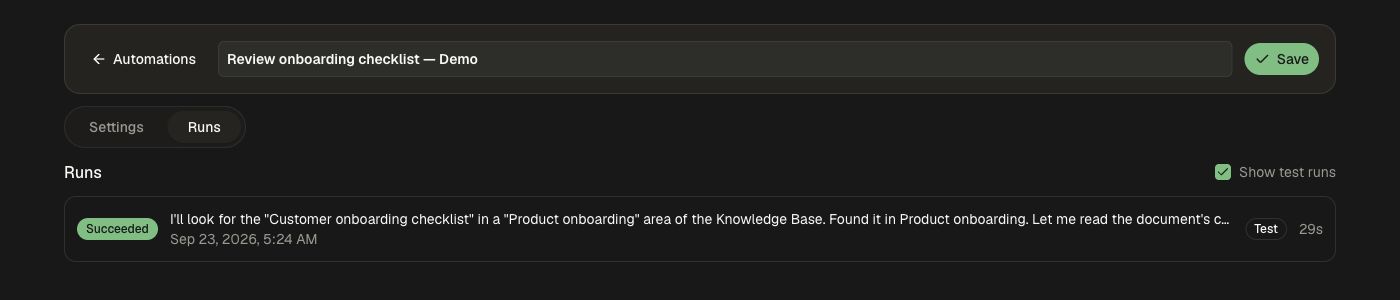
Wait for Succeeded, then read the result. Our test returned the three Before the welcome call tasks: confirm the customer's learning goal, gather approved product guides, and prepare a short course and review its learner preview. Its source is Customer onboarding checklist in Northstar Academy › Product onboarding.
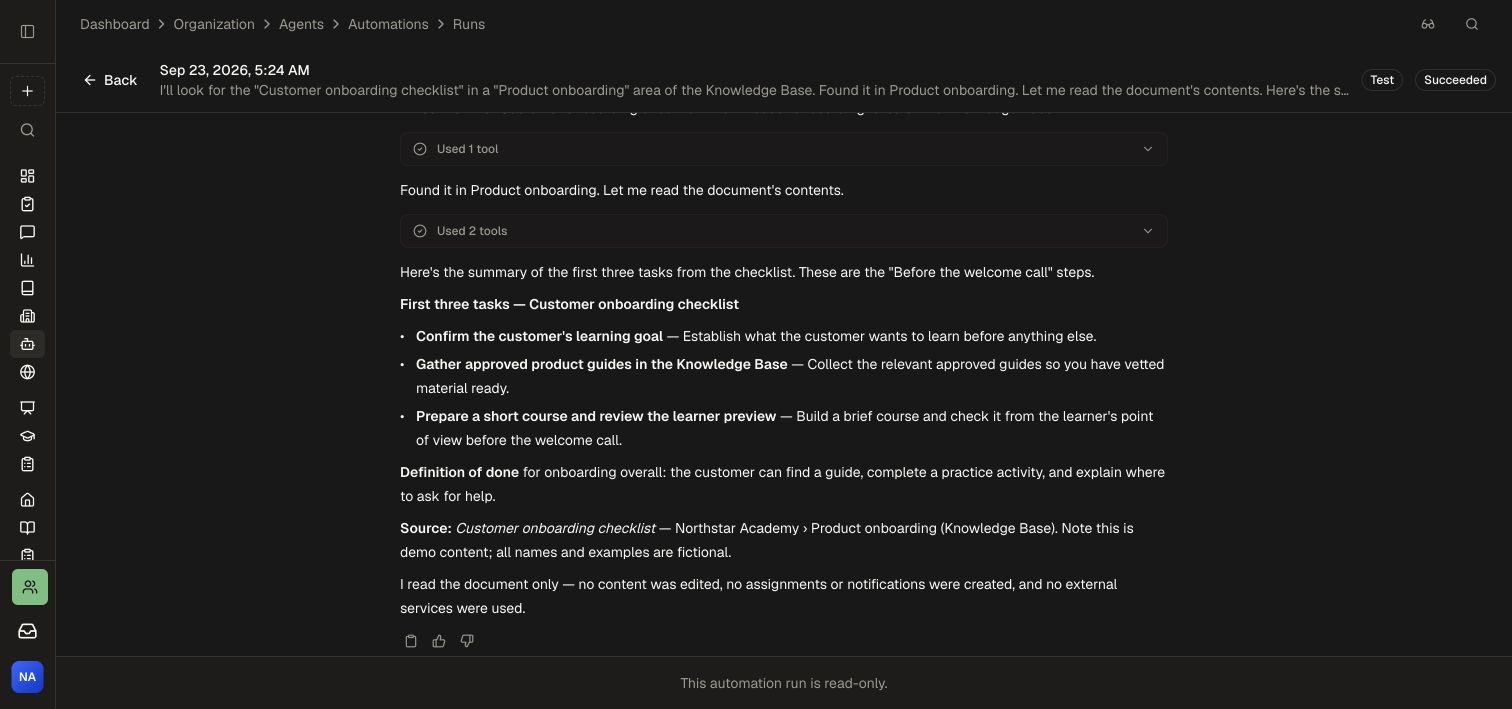
Open the named document in Knowledge Base and compare the answer with the source. Expand Used 1 tool or Used 2 tools, then Show details, to inspect what the Agent actually did. In this example, it searched the Knowledge Base, fetched the checklist, and read the returned text.
6. Find the test again
Choose Back, open Runs, and check Show test runs. Select the successful test to reopen its transcript. Tests are hidden from this list until you select that option.
Return to Settings to confirm Active is still off. Start a manual automation with Run now whenever you need its result. Activate a recurring task only after reviewing its output and intended effects.
Keep recurring work useful
Review Runs to see the task’s status, summary, and conversation. Adjust instructions as your process changes, and turn Active off to pause scheduled triggering.
Choose Knowledge base drift for a report of changed sources and affected courses, Nudge overdue learners for a follow-up task, or Sales calls to courses for course-building work. Adapt the starter instructions and give the selected Agent the required access.
For course maintenance, select the relevant sources and grant permission to propose changes on the intended courses. Ask the Agent to prepare a proposal for the course editor or catalog’s publishing review queue. Your reviewers inspect and approve the changes through the normal publishing workflow.
For recorded execution details, use Inspect Agent logs and analytics. Keep the Agent access policy limited to the resources and actions the task needs; test instructions do not disable write tools.