
Use the Course Editor Assistant to build learning content, the Workspace Assistant to work with your organization, and the Widget Builder to turn available data into a reusable report.
Course Editor Assistant
Open a course's editor to ask for changes to its units, topics, activities, or projects. Attach approved sources and describe the intended outcome. For example:
Use the attached revised checklist to update the welcome-call lesson. Keep the other topics unchanged and leave the result as a draft for review.
The assistant can generate content and media. Add the source assets required by your chosen format, such as a recording for an interactive walkthrough. After processing finishes, open Edit and Preview to review the lesson, play the media, and try the activity before publishing.
Follow Create your first course, Add sources, and Edit and review a course.
Workspace Assistant
Open Assistant or the workspace assistant panel to ask about accessible Knowledge Base material, courses, groups, assignments, and analytics. Give the exact course, group, or reporting period when it matters.
What are the first three steps in our Customer onboarding checklist? Cite the source.
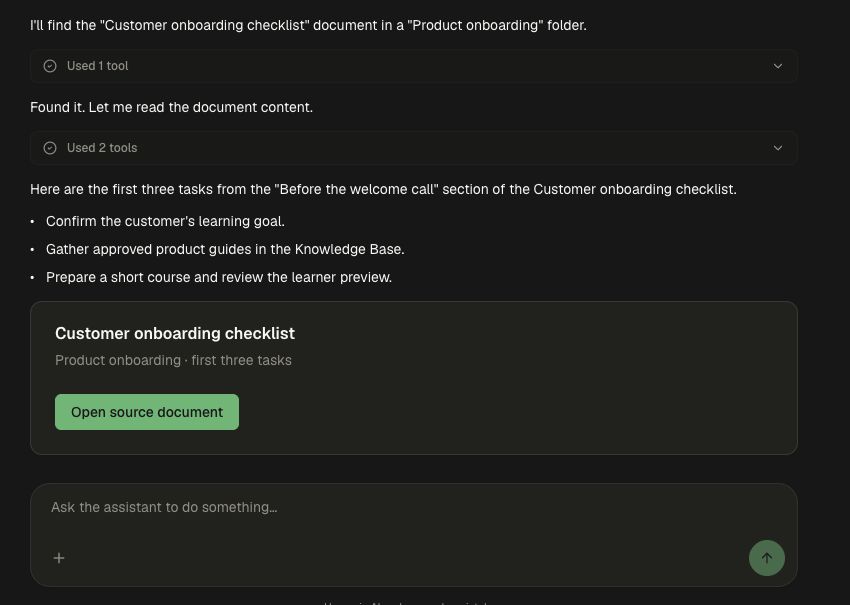
The assistant works within your access. Name the people, group, or content involved in an administrative request and review the confirmation. To revise a course, follow the assistant's link into the Course Editor, where you can review the changes before publishing.
See the completed source-backed assistant walkthrough.
Widget Builder
Use a custom analytics widget when you need a reusable view of data available to your workspace. Describe the metric, population, reporting period, and grouping. Review the generated data and labels before relying on the widget.
For example, request a course-completion breakdown for one group and month. To report on job placements, external exam results, or program demographics, first connect or import those records into the reporting workflow.
A saved widget can refresh using its configured schedule. Use its refresh time and current results to keep reporting aligned with your team’s latest activity. See Analytics and reporting and Funder reporting.
Tutor and custom Agents
The learner's tutor is a separate surface alongside course activities. Workspace Agents are separately configured assistants with their own instructions, access, and channels. Configure each Agent's allowed sources and actions, then use your catalog's approval workflow for course releases.